A broken Android screen can turn a working phone into an inaccessible device. You may know your PIN perfectly well, but a shattered display or unresponsive touchscreen can make entering it impossible.
The good news is that you have several options, but choosing the right one matters. If your screen is still visible and only the touchscreen has stopped responding, an OTG mouse is usually the first thing to try. However, if you cannot interact with the phone at all, Fonelora Android Unlocker is worth checking early in the process.
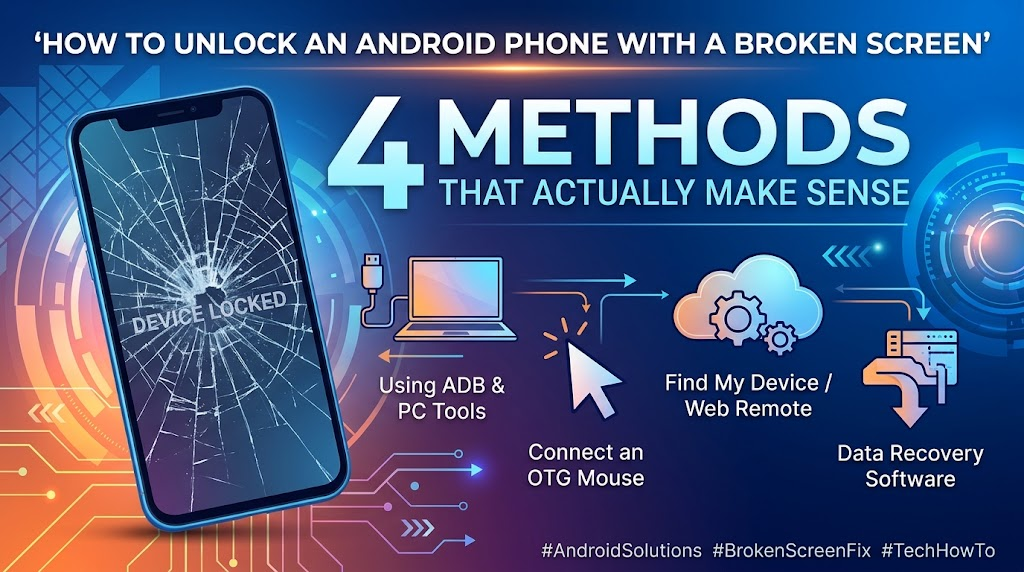
Its guided desktop workflow offers a more straightforward alternative to experimenting with ADB commands, provided your device is supported. Before choosing any unlocking method, consider whether it could erase your data.
Instead of wasting time on trial-and-error fixes, start by identifying your phone’s condition and choosing the method that fits.
1.Fonelora Android Unlocker: A Practical First Choice for Inaccessible Phones
When a broken screen prevents you from entering your password, using a computer can be more practical than trying to navigate the phone blindly. For users whose phones are completely inaccessible, Fonelora Android Unlocker deserves serious consideration: its supported desktop workflow offers a structured alternative to trial-and-error instructions.
Rather than asking everyday users to piece together manual commands or developer settings, Fonelora guides them through its supported screen-unlocking workflow on a computer. This is especially useful when a damaged touchscreen makes on-device navigation impossible. Users can check their device information, review the available procedure, and decide whether its compatibility and data-loss conditions suit their situation.
Why consider Fonelora Android Unlocker?
- A guided workflow: The software walks you through its supported process, making it a more approachable option for users who are uncomfortable with command-line tools.
- Computer-based operation: You can work from a Windows or Mac computer supported by the software instead of depending entirely on a touchscreen that no longer responds.
- Device-specific instructions: Selecting your phone’s brand and model helps you determine whether the available workflow applies to your device.
- A focused solution: The software is designed for screen-lock removal on supported devices, rather than serving as a general-purpose Android troubleshooting utility.
Our view: Fonelora’s strongest advantage is not a promise of universal unlocking, but the combination of a computer-based interface, guided steps, and device-specific instructions. For a phone you cannot operate normally, those features make it a worthwhile option to check early—after confirming device compatibility and possible data loss.
How to Use Fonelora Android Unlocker
1. Check your phone’s compatibility. Visit the official specifications page and confirm whether your device model and software version are supported.
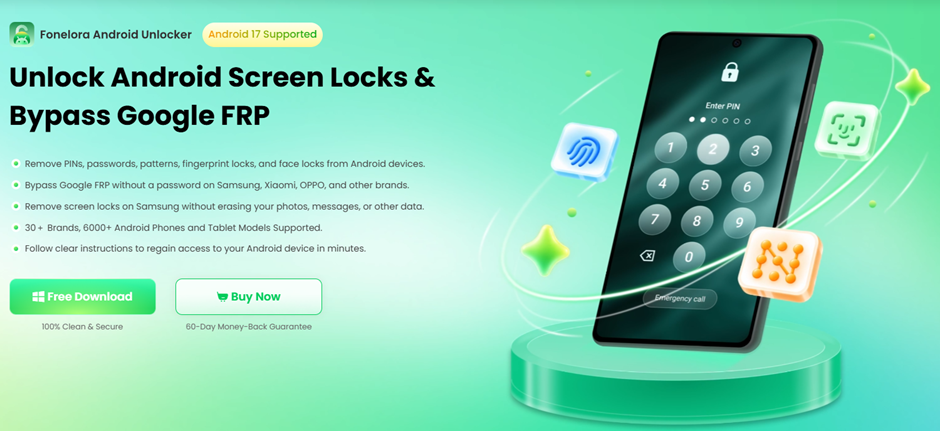
2. Install the desktop software. Download Fonelora Android Unlocker from its official website and open it on a compatible computer.
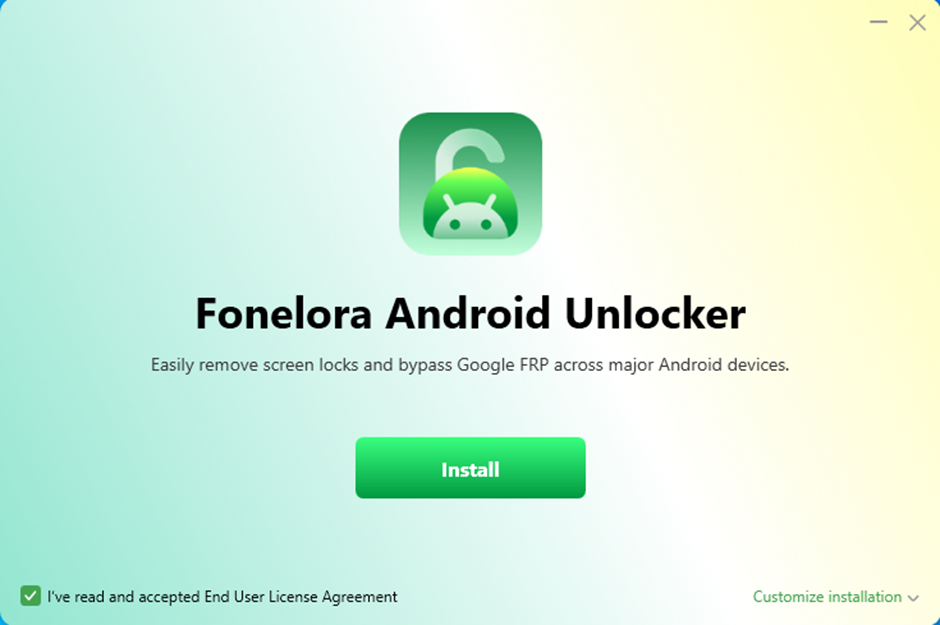
3. Choose Screen Unlocker. Select the relevant module from the software interface.
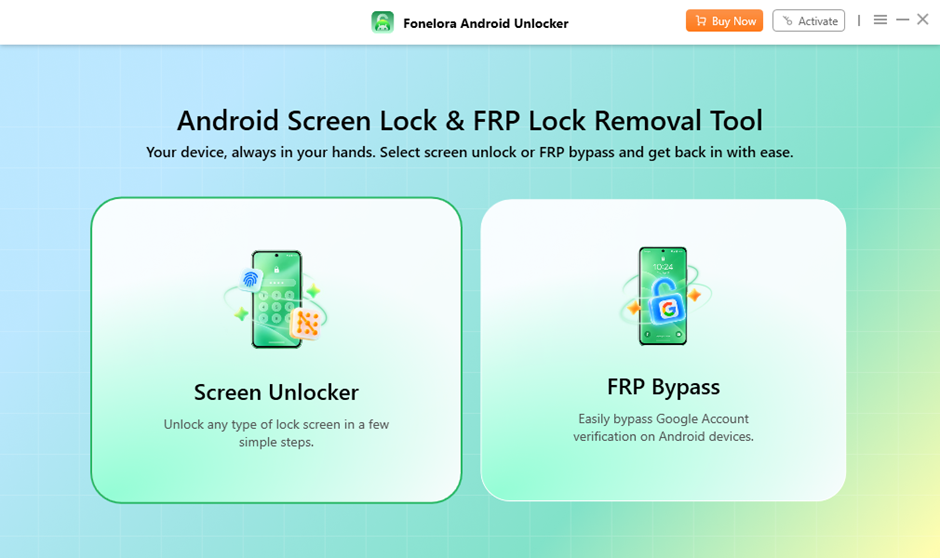
4. Connect your phone. Use a compatible USB data cable and a functioning USB port.
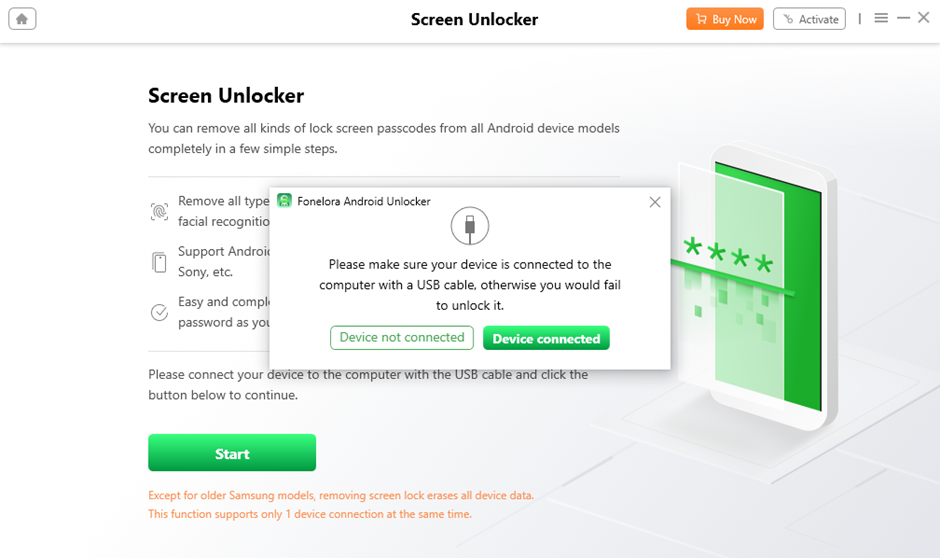
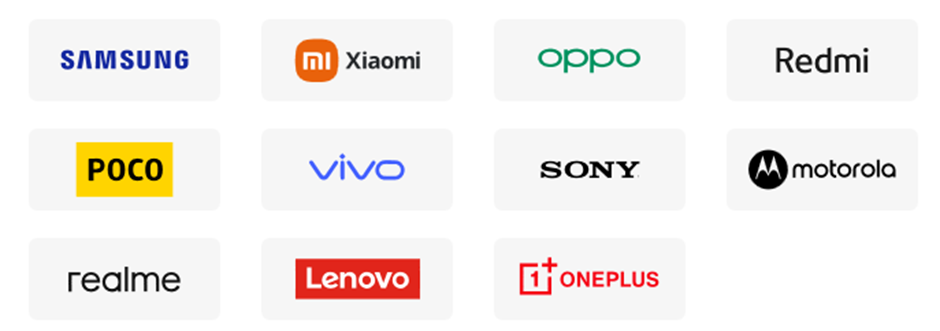
5. Select your device information. Choose the correct brand and model, then read the instructions shown for your specific device.
6. Review the data-loss warning. Check whether the proposed procedure erases local data and make sure you understand the consequences before proceeding.
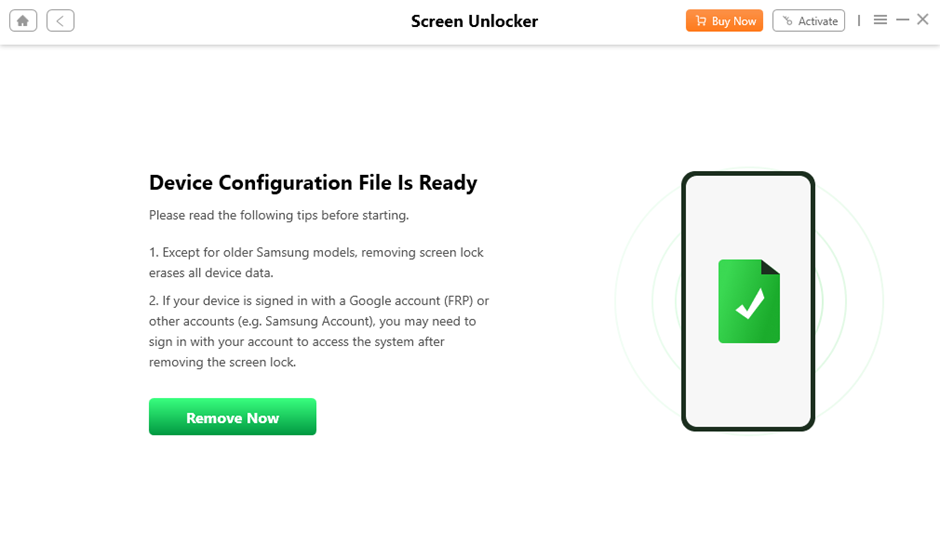
7. Follow the guided process. Complete the steps displayed by the software and wait for its result before disconnecting the phone.
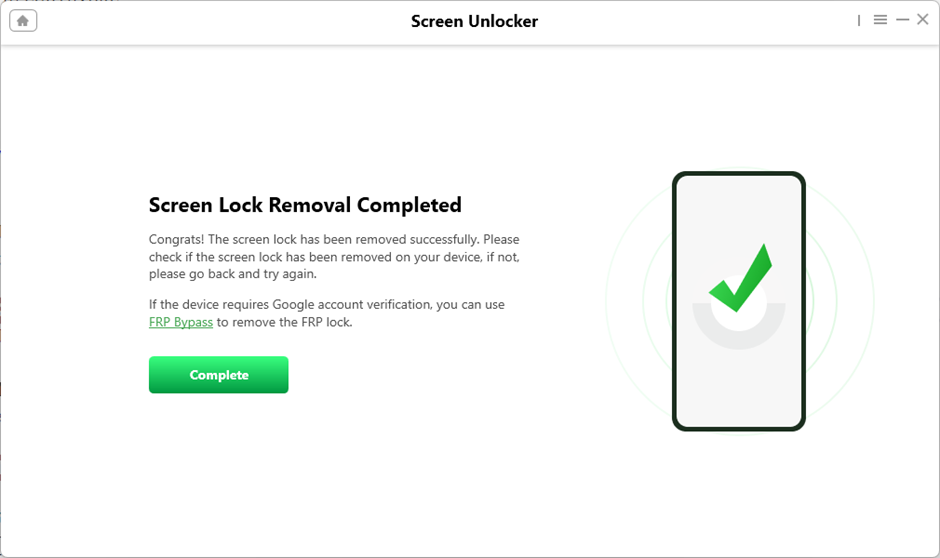
The exact workflow depends on the device and the software version. A compatible model does not automatically guarantee successful unlocking, and a desktop tool cannot repair a physically damaged display.
Our take: If the phone is completely inaccessible and you prefer an on-screen guided process over unfamiliar ADB commands, we would put Fonelora Android Unlocker on the shortlist. The desktop workflow is its key advantage for supported devices. Check compatibility and data-loss conditions first, because no single unlocking approach works for every Android phone.
Explore Fonelora Android Unlocker and check the compatibility requirements before getting started.
2.Use an OTG Mouse When the Display Still Works
If the screen displays your lock screen but no longer responds to touch, you may not need unlocking software at all.
An OTG adapter lets a compatible Android phone connect to a standard USB mouse. This is often the better first choice when you can still see the screen and simply cannot interact with it.
Steps
- Connect a compatible OTG adapter to the phone.
- Plug a USB mouse into the adapter.
- Wake the display using the power button.
- Check whether a cursor appears.
- Use the mouse to enter your PIN, password, or pattern.
The major advantage is that this approach does not remove the screen lock or require a factory reset. It can therefore preserve access to existing local data.
The limitation is obvious: if the display is completely black, navigating with a mouse becomes impractical unless you can view the screen through another supported display method.
Our recommendation: Try OTG first if your display remains visible. If you cannot see or operate the lock screen, move on to checking supported desktop or repair options.
3.Check Official Samsung Support Options
Samsung users should check the manufacturer’s current support services before trying third-party solutions.
Be careful with older tutorials about SmartThings Find or Find My Mobile. Device-location features do not necessarily include remote screen-lock removal, and availability depends on the device, software version, account configuration, and current service capabilities.
If you cannot access your phone, an authorized repair provider may also be able to assess whether replacing the damaged display can restore access without requiring a reset.
This option is particularly worth considering when your local data is more valuable than the cost of repair.
4.Why ADB Is Not a Reliable Universal Fix
Android Debug Bridge (ADB) is frequently presented online as a way to remove a forgotten PIN or pattern. For a phone with a broken screen, however, it is rarely a straightforward solution.
USB debugging generally must have been enabled before the damage occurred, and the computer may need prior authorization. Even then, ADB does not provide a universal supported command for removing modern Android screen-lock credentials.
If debugging was disabled, or your phone requires authorization through an inaccessible display, this route may lead nowhere.
For most everyday users, a guided desktop workflow is easier to evaluate than spending hours experimenting with commands that may not work on their device.
Which Method Should You Choose?
| Your Situation | Best Option to Try | Main Consideration |
| Screen visible, touch unresponsive | OTG mouse | May restore access without erasing data |
| Screen black, desktop access needed | For a completely inaccessible phone, our preferred next step is to check whether Fonelora Android Unlocker supports the exact model. Its guided desktop workflow gives everyday users a more structured approach than piecing together unfamiliar ADB instructions, making it a practical candidate when the usual touchscreen workaround is unavailable. | Device support and data-loss conditions matter |
| Important files are not backed up | Screen repair or professional advice | Prioritize data preservation |
| Samsung phone with official support options | Check current Samsung services | Remote lock removal is not guaranteed |
| USB debugging was never enabled | OTG, repair, or supported desktop options | ADB is unlikely to help |
For a completely inaccessible phone, we would start by checking whether Fonelora Android Unlocker supports the exact model. Its guided workflow makes it a practical candidate to evaluate without first relying on complex manual commands.
However, if preserving unbacked-up data is your top priority, do not rush into any lock-removal procedure that may erase local files.
Will Unlocking a Broken Android Phone Erase Data?
This is the question to answer before choosing any method.
- OTG mouse: Usually preserves data because you are entering your existing credentials rather than removing the lock.
- Screen repair: May preserve data if the repair does not require a reset.
- Desktop unlocking software: Data outcomes depend on the device and procedure. Some supported procedures may erase local data.
- Factory reset: Erases local data stored on the device.
Modern Android encryption makes many software-based lock-removal scenarios more complicated than older online tutorials suggest. Do not assume that a tool can remove a PIN or pattern while preserving all your files.
If you have irreplaceable photos, documents, or messages, check your existing backups and seek professional advice before proceeding.
Frequently Asked Questions
Can I unlock a black-screen phone without losing data?
Possibly, but there is no universal guarantee. Consider repair or professional assistance first if your files are not backed up.
Does Fonelora repair a broken screen?
No. It addresses supported software screen-lock procedures, not cracked glass, failed touch sensors, or damaged display hardware.
Final Verdict
If the display is still visible, start with an OTG mouse: it may restore access without removing the lock. If the phone is completely inaccessible, our recommendation is to check Fonelora Android Unlocker’s compatibility before spending time on generic ADB workarounds. We particularly like its guided computer-based workflow for supported devices, because users can follow a structured process rather than guessing at commands.
No universal compatibility should be assumed. Check the official device specifications for supported models and requirements.
In our view, the smartest approach is to match the method to the condition of your phone. For supported, fully inaccessible devices, Fonelora offers a compelling guided option to investigate; for phones holding irreplaceable unbacked-up files, prioritize data preservation and professional repair advice.
For users who prefer a guided interface, a desktop unlocking tool may be easier to navigate than command-line troubleshooting. However, compatibility and the actual outcome depend on the device and procedure.
You may also like to check out:
- Download: iOS 27.2 Final IPSW Links, OTA Update Released
- Jailbreak iOS 27.2: We We Know So Far
- How To Fix Bad iOS 27 Battery Life Drain On Your iPhone
You can follow us on X, or Instagram, subscribe to our YouTube channel and even like our Facebook page to keep yourself updated on all the latest from Microsoft, Google, Apple, and the Web.