
I finally got my Xbox 360 Universal Media Remote to work with Windows Media Center under Windows Vista Ultimate. Xbox 360 owners might already be aware of the fact that the only way to get your Xbox 360 universal media remote to work with Media Center machine is to connect your Media Center PC with Xbox 360 as officially stated on the Xbox 360 web site:
The Universal Media Remote works only with TVs, the Xbox 360 console, and a connected Microsoft Windows Media Center–based PC. It does not control VCRs, stand-alone DVRs and DVD players, or audio equipment.
But if you, like me are among one of those who dont have your Xbox 360 hooked up to your Media Center PC but still want to use this beautiful remote with your PC then you’ll need the following: 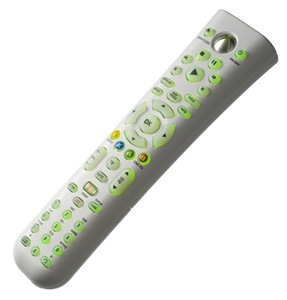
1. Microsoft Remote Control Receiver 1.0A for Media Center PC
2. Microsoft Xbox 360 Universal Media Remote
3. TweakMC
If you already have Microsoft Remote Control v2 and Receiver 1.0A you will notice that when you press any button on the Xbox remote facing towards the IR Receiver, the receiver receives the signal as indicated by the blinking red light on the receiver but it does not perform any operation. Follow the following step by step procedure to enable your Xbox 360 controller to work within Windows and Windows Media Center :
Step 1: Start TweakMC (Run as Administrator).
Step 2: under “Remote Control Settings”, make sure that Universal Remote Control is enabled.
Step 3: Set Remote Control ID as:
- 0 – To enable Media Center to respond to all types of remotes.
- 1 – To enable Media Center to respond to Microsoft Media Center remote only.
- 8 – To enable Media Center to respond to Xbox 360 Universal Media Remote only.
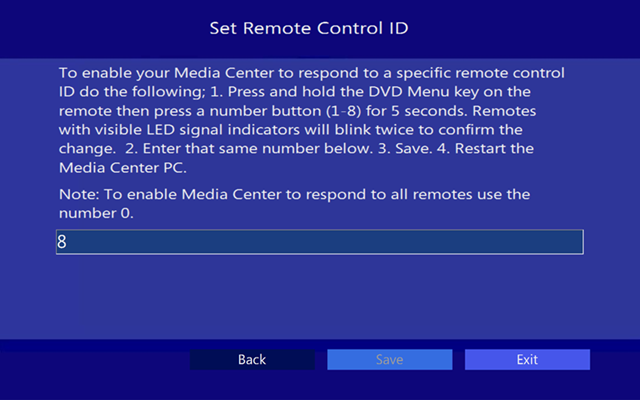
I suggest you set Remote Control ID as 0 so that your Media Center works with both the Media Center Remote which came with the receiver and the Xbox 360 Universal Media Remote. If you have other media equipment in the same room as your Media Center PC and if you find its remote interfering with Media Center then you select either 1 or 8 as your Remote Control ID depending on which remote control you really want to enable.
Step 4: Restart you computer.
After the restart, you should be able to use your Xbox 360 remote with Windows Media Center. However there is still one problem. You will notice that Media Center responds to all buttons from your Xbox 360 remote except for the Vol +/- , CH +/- and the Mute button. Fortunately there is a way to get them work too. You will need to download Intelliremote from Melloware. Its a great piece of software which lets you completely customize each and every key of your remote control for specific applications. It sits quietly in your tray area awaiting infrared signals. Moreover, you can also create profiles for specific application and can switch between them anytime you want. However its not free and comes at a price of $24 but you can download the 30-days trial version from vendors web site.
Step 5: Install Intelliremote and run the application.
Step 6: Switch to “Customize” tab and then select “Media Center Vista” profile.
Step 7: Scroll down through the keys list and select “Volume Up”. Click on “Learn Code”, point you Xbox remote towards the receiver and and press Vol+ key on the remote until the popup on screen reads “Learned!”.

Step 8: Similarly re-program Vol-,CH+,CH- and Mute key on the Xbox remote by repeating Step 7 and you are done.
In the “Settings” tab make sure that you check “Launch automatically at Windows startup” so that you dont loose the control of your PC from remote when your PC is restarted.
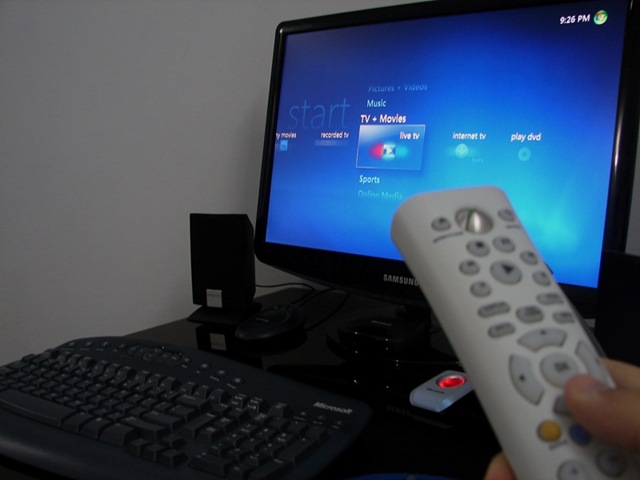
Drop your queries in the comments box below if you run into issues getting your Xbox remote to work with Media Center.
