
Here’s how to downgrade the iOS 27 beta software to iOS 26.5.1 on a compatible iPhone. Use this approach if you need to remove the beta and get back to Apple’s latest, stable software release.
Apple announced the iOS 27 software update at the WWDC event on June 8, and immediately made an early beta version available for download by developers.

We always recommend that only developers install these betas, and even then, that they only install the betas on a device that isn’t mission-critical.
All of that being said, there may be times when you need to jettison iOS 27 and downgrade to a stable release, like iOS 26.5.1. But be warned, you will not be able to restore a backup of your device that was made using iOS 27 — you can’t restore using a backup from a newer version of iOS. Still need to downgrade? Here’s how to go about doing just that.
Step 1: Ensure that you have upgraded to, and are running, the latest version of iTunes on your PC or Mac. If you are running macOS Catalina or later, then you don’t need to worry about iTunes, as this is all handled by the Finder app built directly into the OS.
Step 2: You will need to be in possession of the correct IPSW iOS/iPadOS 26.5.1 file that has been compiled by Apple, and that is intended for your device. Will be downgrading to this file and can grab it from here.
Step 3: Now, you will need to make sure that the Find My feature is disabled on your iPhone or iPad. In order to do that, launch Settings > iCloud > Find My and toggle the switch into the Off position. Enter your Apple ID and correct password to confirm your decision.
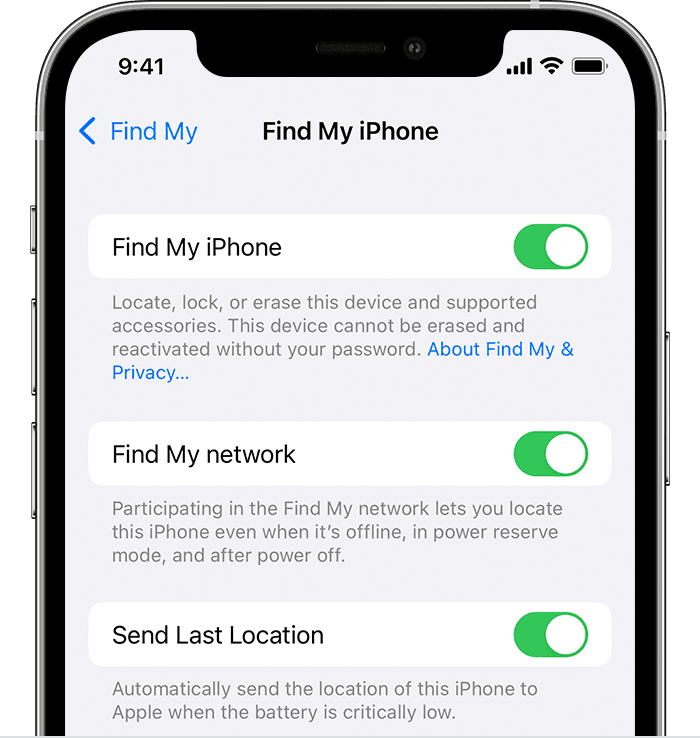
Step 4: Connect your device to your PC or Mac. If iTunes doesn’t load automatically, you’ll need to do it manually and make sure that it’s running. If you’re running Catalina or Big Sur, then just launch a Finder window.
Put your device into DFU mode using the quick guides below (if you don’t already know how to do it):
iPhone XR / XS / XS Max / 11 / 11 Pro / 11 Pro Max / 12 / 12 mini / 12 Pro / 12 Pro Max / 13 / 13 mini / 13 Pro / 13 Pro Max / 14 / 14 Plus / 14 Pro / 14 Pro Max /15 / 15 Plus / 15 Pro / 15 Pro Max / 16 Pro / 16 Pro Max / 16e / 16 / 16 Plus / Air / 17 / 17 Pro / 17 Pro Max / 17e, or 2018+ iPad Pro owners can follow this guide.
Step 5: With the DFU mode step out of the way, head into iTunes or Finder and press and hold the Option key on a Mac or the Shift key on a PC, and click the Restore iPhone/iPad option.
Step 6: Choose the IPSW file (iOS/iPadOS) that you downloaded earlier in the process. Exercise some patience and allow iTunes/Finder to go through the standard process and leave you with an iPhone or iPad that has been downgraded from iOS/iPadOS 27 to the version included within the IPSW file that you’ve chosen.
You may also like to check out:
- Download iOS 27 Beta 1 IPSW Links For Developers Now
- iOS 27 Beta 1 OTA Profile Update Download: Here’s How To Install It
- iOS 27 Public Beta 1 OTA Release Date Set For Next Month Alongside iPadOS 27, macOS 27
You can follow us on X, or Instagram, subscribe to our YouTube channel and even like our Facebook page to keep yourself updated on all the latest from Microsoft, Google, Apple, and the Web.
