A frozen screen, an Apple logo that never goes away, or a “connect to computer” message can be alarming. That message means your device is in iPhone recovery mode, a built-in state that lets a computer repair the software.
This guide shows you how to enter recovery mode on your iPhone Duo and, more importantly, how to leave it. You’ll learn three ways to get back to normal use: ReiBoot, a force restart, and Finder or Apple Devices.

Part 1. Why Would You Need Recovery Mode on iPhone Duo?
Recovery mode is a special state where your iPhone Duo waits for a computer to install or repair iOS. People usually need iPhone recovery mode when an update stalls, the phone hangs on the Apple logo, or it restarts again and again. Entering recovery mode does not erase anything by itself. Data is removed only if you choose Restore afterward, so an Update is the safer first choice.
Part 2. How to Enter Recovery Mode on iPhone Duo
Best for: Use this method when the iPhone Duo cannot boot correctly, an update fails, or a computer asks you to put the device into recovery mode.
If you are wondering how to enter recovery mode on iPhone, Apple’s current process for iPhone 8 and later uses the volume buttons and Side button while the device remains connected to a computer. The steps below follow Apple’s current recovery-mode guidance.
- Update your Mac if needed, or install/update the Apple Devices app on a Windows PC. Connect your iPhone Duo to your PC with the help of a USB cable. Open the Finder app on Mac or Apple Devices on a Windows computer.
- Now, press and quickly release the Volume Up button. After that, press and quickly release Volume Down button. Then press and continue holding the Side button. Do not release it when the Apple logo first appears.

Keep holding the Side button until the Connect to Computer screen appears. Apple currently gives this sequence for iPhone 8 and later.
- Once the recovery screen appears, leave the iPhone connected. Finder or Apple Devices should recognize that the device needs attention and display the available recovery options.
Do not disconnect the cable while Finder or Apple Devices is actively updating or restoring the device.
Part 3. How to Get iPhone Duo out of Recovery Mode
Knowing how to get iPhone out of recovery mode is especially important because restoring the device should not automatically be your first response.
If the phone entered recovery mode accidentally, or no update or restore is currently running, try a normal exit method first. If the iPhone keeps returning to the recovery screen or cannot start correctly, move on to the official Update or Restore process.
Method 1. Exit Recovery Mode on iPhone Duo Using ReiBoot
Best for: This option may help if the iPhone Duo is stuck on the recovery screen and you want a desktop-guided way to exit without immediately choosing a system restore.
Tenorshare ReiBoot is a desktop tool built to handle stuck devices.
- It includes a dedicated Exit Recovery Mode function.
- It detects a connected device that is already in recovery mode and provides an Exit option from its main interface.
- Its guided interface also avoids requiring users to repeat the button sequence manually.
For users searching for iPhone recovery mode without iTunes, ReiBoot offers an alternative. However, this is not a completely computer-free solution: you still need a Windows PC or Mac and a USB connection.
Here is how to exit recovery mode on iPhone Duo with ReiBoot:
- Install and open ReiBoot: Download Tenorshare ReiBoot on your Windows PC or Mac. Launch the application, then connect the iPhone Duo to the computer with a USB cable. Tenorshare’s current instructions use this connection as the first step.
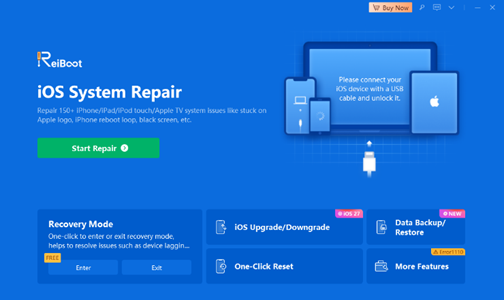
- Choose Exit Recovery Mode: After ReiBoot recognizes the device in recovery mode, find the Exit Recovery Mode or Exit option on the interface and select it.
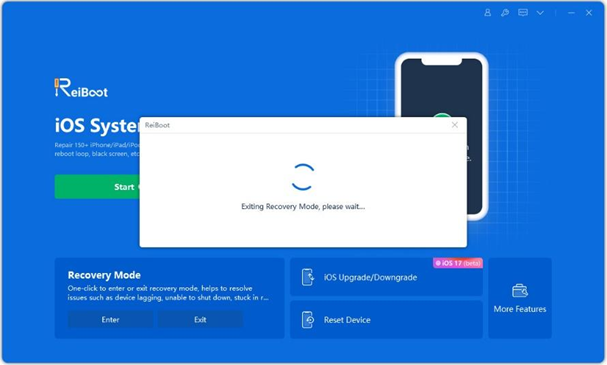
- Wait for the iPhone Duo to restart: Keep the phone connected while ReiBoot attempts to restart it into normal iOS. Don’t disconnect the cable until the process finishes.
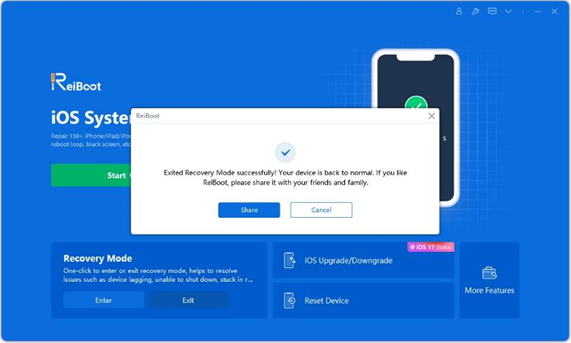
ReiBoot’s Exit Recovery Mode feature is a one-click function that restarts a device out of recovery mode without performing a factory restore. As with any troubleshooting utility, keep an up-to-date backup whenever possible, and don’t assume a software tool can resolve hardware-related problems.
Method 2. Exit Recovery Mode on iPhone Duo with a Force Restart
Best for: Try a force restart when the iPhone Duo entered recovery mode unexpectedly and no software update, restore, or repair process is currently running.
A force restart is one of the simplest approaches to how to exit recovery mode on iPhone without immediately reinstalling iOS. Apple’s current iOS 27 instructions use the Volume Up, Volume Down, and Side buttons to force-restart.
- Make sure no update or restore is running on the iPhone.
- First, press and quickly release the Volume Up button.
- Now, press and quickly release the Volume Down button.
- Finally, press and hold the Side button.
- Continue holding it until the Apple logo appears, then release the Side button.
If the device starts normally and reaches the Lock Screen, you have successfully left recovery mode. If the recovery screen appears again, the phone may still have a software problem that requires an update or restore.
Method 3. Update or Restore iPhone Duo with Finder or Apple Devices
Best for: Use this official fallback when a force restart does not work, the iPhone repeatedly returns to recovery mode, or iOS cannot start correctly.
When basic methods do not solve the problem, another answer to how to exit recovery mode on iPhone Duo is to use Finder on a Mac or Apple Devices on a Windows PC.
When possible, try Update before Restore. Updating attempts to reinstall or update iOS while preserving the device’s existing data. Restore is more disruptive because Apple states that it reinstalls iOS and erases the device.
- Use a USB cable and open Finder on Mac or Apple Devices on Windows. Make sure your Mac and Apple Devices app are up to date.
- If necessary, press Volume Up, quickly press Volume Down, and then hold the Side button until the connect-to-computer screen appears.
- Select your iPhone Duo when it appears.
- Click Update. Your computer will download and reinstall iOS without erasing your data.
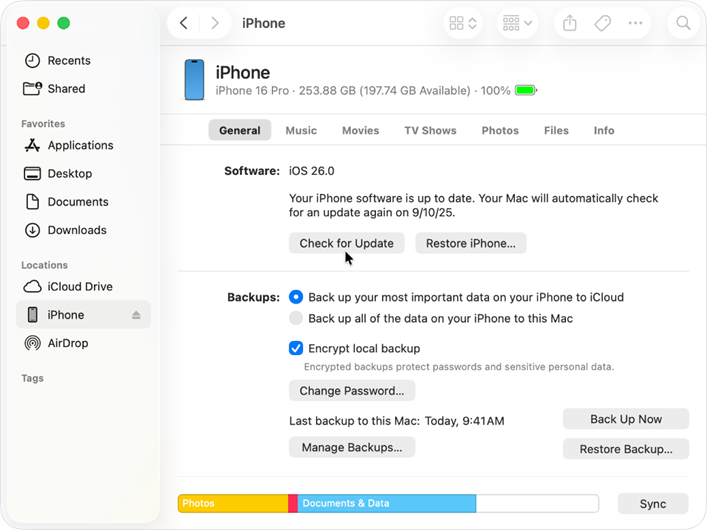
- If the download takes more than 15 minutes, the phone may leave the recovery screen. Repeat the steps from the start.
- If Update fails, click Restore. This erases the device, so use it only as a last resort.
- When it finishes, follow the on-screen setup.
Apple notes that if the software download takes long enough for the iPhone to leave the connect-to-computer screen, let the download finish and then place the device back into recovery mode before continuing.
FAQs About iPhone Duo Recovery Mode
1. Does Entering Recovery Mode Erase Data on iPhone Duo?
No. Simply placing the iPhone Duo into recovery mode does not erase its stored content. The important distinction comes afterward. If you select Restore in Finder or Apple Devices, Apple states that it reinstalls iOS and erases the device’s data.
2. Can I Exit Recovery Mode on iPhone Duo without a Computer?
Yes, sometimes. If no update or restore is running, you can try a force restart using the Volume Up, Volume Down, and Side buttons. However, if the phone repeatedly returns to recovery mode or cannot boot correctly, you may need a computer to update or restore iOS.
3. Why Does My iPhone Duo Keep Returning to Recovery Mode?
Repeated recovery-mode screens can indicate that iOS cannot complete the normal startup process. Possible causes include an interrupted or unsuccessful software update, damaged system software, or another device problem. Try an update through Finder or Apple Devices before considering a full restore.
4. What Should I Do If My Computer Does Not Recognize My iPhone Duo?
First, make sure the USB cable and computer port work correctly. Confirm that Finder or Apple Devices is up to date, reconnect the iPhone, and repeat the recovery-mode button sequence. Apple lists a computer not recognizing the device as one situation that may require recovery-mode troubleshooting.
5. Is Recovery Mode the Same as DFU Mode?
No. Recovery mode and DFU mode are different troubleshooting states. Recovery mode is Apple’s standard way to let Finder or Apple Devices update or restore an iPhone that cannot start normally. DFU mode is a deeper, device-level recovery process and isn’t normally needed for routine troubleshooting.
Conclusion
Entering iPhone recovery mode on iPhone Duo involves connecting it to a computer and using the Volume Up, Volume Down, and Side button sequence. For how to get iPhone out of recovery mode, start with ReiBoot or a force restart before moving to Apple’s Update or Restore options when necessary. If you prefer a guided desktop process, try ReiBoot’s recovery-mode tools.
You may also like to check out:
- Download: iOS 27.0.1 IPSW Links, OTA Update Released, Here’s What Is New
- Jailbreak iOS 27.0.1: Everything You Need To Know
- How To Fix Bad iOS 27 Battery Life Drain On Your iPhone
You can follow us on X, or Instagram, subscribe to our YouTube channel and even like our Facebook page to keep yourself updated on all the latest from Microsoft, Google, Apple, and the Web.