Yes, you can still spoof in Pokémon GO on your iPhone in 2026 without jailbreaking. However, using modified game apps (tweaked IPAs) is currently the leading cause of account bans and the frustrating “Failed to detect location (12)” error.
The standard, safer approach now relies on playing the official App Store version of Pokémon GO while tethered to a desktop GPS modifier on a PC or Mac.
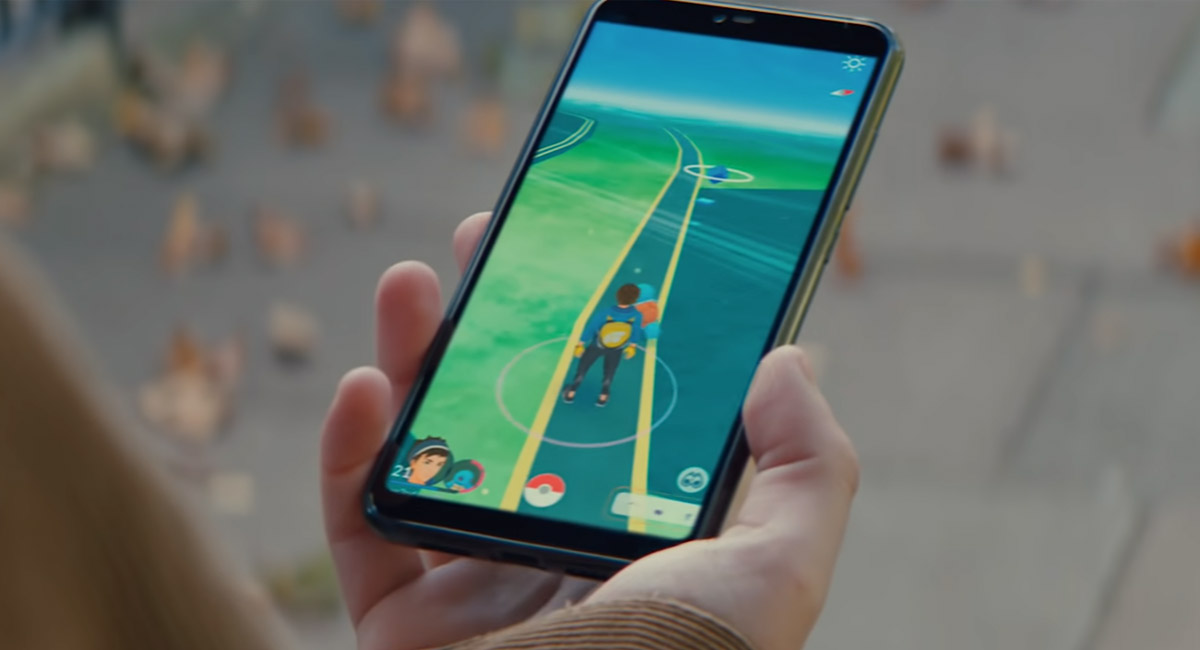
For years, players relied on third-party mobile apps to jump around the map. Today, Niantic’s anti-cheat algorithms quickly flag altered application signatures. If you are experiencing immediate soft bans or continuous Error 12 messages, your setup is likely outdated. By shifting to a tethered desktop method, you can manage your virtual location at the system level while keeping the official game app intact.
Why Modified Apps Cause Error 12 (And What to Use Instead)
Niantic frequently updates its server-side checks and on-device anti-cheat systems to detect modified application signatures. When you download a “tweaked” version of Pokémon GO directly to your iPhone, the game immediately recognizes that it didn’t come from the official App Store. This mismatch triggers “Failed to detect location (12)” and puts your account at high risk of a permanent ban.
To avoid this, modern setups rely on Tethered Desktop Spoofers. Instead of changing the game app, these tools run on a PC or Mac and change your iPhone’s system-level GPS location via a wired or wireless connection. This allows you to play using the 100% unmodified, official game while utilizing iOS location spoofing alternatives to stay off Niantic’s immediate radar.
| Feature | Modified Apps (Tweaked IPAs) | Tethered Desktop Spoofers (PC/Mac) |
| Game App Used | Unofficial, altered version | Official App Store version |
| Error 12 Risk | Very High (Immediate flag) | Low (Bypasses basic app signature checks) |
| Account Risk | High ban rate | Reduced risk (Depends on your movement behavior) |
| Jailbreak Required? | Usually No | No |
| Setup Method | Risky third-party profiles | Connected via USB/Wi-Fi to a computer |
If you want to stop encountering Error 12, the first mandatory step is deleting the modified app and reinstalling the official Pokémon GO app from the Apple App Store.
The Golden Rule of Spoofing: Understanding the Cooldown Timer
Even with the safest desktop setup and the official game app, algorithmic detection can still catch you if your in-game behavior is physically impossible. This brings us to the most critical condition for account safety: understanding the Pokémon GO cooldown rules.
The cooldown timer is the required waiting period between in-game actions (like spinning a PokéStop or catching a Pokémon) based on the real-world distance you just traveled. Jumping long distances without respecting this timer will trigger a soft ban—meaning Pokémon will instantly flee, and PokéStops won’t drop items.
Here is a realistic breakdown of distances and the required cooldown times you must wait before interacting with the game again:
| Real-World Distance | Required Cooldown Time |
| 1 to 5 km | 1 to 5 minutes |
| 10 to 25 km | 10 to 15 minutes |
| 50 to 100 km | 25 to 45 minutes |
| 250 to 500 km | 45 to 90 minutes |
| 1000+ km | 2 hours (Maximum Cooldown) |
Important: No tool is “100% anti-ban.” Emulating realistic travel times is your responsibility. Always wait for the cooldown period to expire after a long teleport before you tap on anything in the game.
The Safer Method: Desktop Tethered Spoofing with Fonelora
Because modified apps trigger Error 12, you need a reliable tethered solution to manage your location from a computer. This is where Fonelora Location Changer becomes a practical choice to change location in Pokémon GO for iOS users.
Fonelora Location Changer is a guided desktop iOS GPS spoofer that works with the official Pokémon GO app. By connecting your iPhone to your PC or Mac, it changes your device’s global GPS coordinates at the system level. Because the game itself remains untouched, this setup specifically helps users bypass the immediate detection flags that cause Error 12.
More importantly for gameplay, Fonelora features a built-in Game Mode and a Cooldown Timer. Instead of guessing how long you need to wait after jumping to a new city, the software provides on-screen cooldown reminders to help you manage your game-related movement responsibly. While no tool can guarantee zero ban risk, using a stable desktop client alongside realistic movement habits significantly reduces your exposure to automated anti-cheat systems.
Step-by-Step Guide: How to Spoof Pokémon GO on iOS
Setting up a tethered spoofing session is straightforward, but it requires a few specific iOS settings to work properly with modern Apple security. Here is the step-by-step workflow:
- Download and Connect: Install Fonelora Location Changer on your Windows PC or Mac. Launch the software and connect your iPhone using a standard USB cable.

- Select the Mode: Choose “Game Mode” from the interface. Note that for newer iOS versions, Game Mode may prompt you to complete a brief Bluetooth pairing and install a temporary configuration profile to ensure a stable connection.

- Enable Developer Mode: If you are running iOS 16 or later, Apple requires Developer Mode to be active for location testing. Go to your iPhone’s Settings > Privacy & Security > Developer Mode and toggle it on. Your phone will restart to apply the change.
- Launch the Game: Once the software successfully connects and loads the map, open your official Pokémon GO app.
- Change Location: Use the map on your computer to select a destination, check the recommended cooldown time, and click to teleport. Your in-game avatar will move to the new coordinates immediately.

Using Joystick and Natural Movement to Avoid Detection
Scenario: Emulating a Natural Walk in a Local Park Imagine you want to catch Pokémon at a popular park in another city. If you repeatedly teleport from PokéStop to PokéStop, the game’s algorithm will notice the mechanical, unnatural movement patterns and may flag your account. Realistic movement is crucial to avoiding detection.
To play safely without leaving home, you can use Fonelora Location Changer to simulate walking rather than just jumping around:
- GPS Joystick: When you need small-area movement or real-time direction control, Joystick Mode lets you “walk” your avatar manually. You can steer 360 degrees using your computer’s keyboard or on-screen controls, making it easy to approach nearby Gyms or track down a nearby spawn naturally.
- Route Simulation with Variable Speeds: For hatching eggs or earning buddy candy, you can set up a Multi-Spot route. By adjusting the speed to a natural walking pace (e.g., 2 to 4 km/h) and enabling realistic speed fluctuations, your avatar won’t look like a robotic script moving at a fixed mathematical pace.
Always remember to check the built-in Cooldown Timer before transitioning from walking to making a sudden large jump to a different neighborhood.
Frequently Asked Questions About Spoofing Pokémon GO
Q1: Can you still spoof in Pokémon GO on iOS?
Yes. While older methods using modified mobile apps are highly unsafe, you can still spoof in 2026 by using the official game app tethered to a desktop GPS modifier like Fonelora Location Changer.
Q2: How do I spoof without getting banned or soft-banned?
The two most important rules are: avoid tweaked, unofficial IPAs (to prevent hard bans) and strictly respect the game’s cooldown timer when teleporting long distances (to prevent soft bans).
Q3: Do I need to jailbreak my iPhone to spoof?
No. Modern tethered desktop tools utilize built-in iOS developer protocols to change your location, meaning you do not need to jailbreak your device or risk voiding your warranty.
Q4: How to fix Error 12 (Failed to detect location) in Pokémon GO?
Error 12 is usually caused by Niantic detecting a modified app signature or an unsupported location app. To fix it, delete any tweaked game apps, reinstall Pokémon GO directly from the App Store, and switch to a system-level desktop GPS changer.
Q5: Is tethered desktop spoofing safer than using modified apps?
Yes. Because tethered tools change the GPS coordinates of the entire phone rather than injecting code into the game, the game app signature isn’t altered. However, no method is 100% risk-free, and your movement behavior is still monitored.
Final Thoughts on Safely Spoofing Pokémon GO on iOS
Spoofing in Pokémon GO on an iPhone is still highly viable in 2026, provided you adapt to Niantic’s current anti-cheat measures. Continuing to use risky modified apps will almost certainly result in Error 12 and account bans.
To protect your account, you must transition to playing the official App Store version of the game. Combining the official app with strict adherence to cooldown rules and realistic movement simulation is the smartest way to play virtually.
If you are looking for a stable, guided desktop alternative to manage your virtual location without the frustration of instant bans, Fonelora Location Changer provides the necessary Joystick controls, route flexibility, and cooldown reminders to help you play safely.
Ready to safely explore the world? Download Fonelora Location Changer today and regain control over your Pokémon GO gameplay.
You may also like to check out:
- iOS 27 Beta 5 Download And Expected Release Date
- Download: iOS 27 Beta 6 IPSW Links, OTA Update, And More Released
- iOS 27 Beta 1 OTA Profile Update Download: Here’s How To Install It
- Jailbreak iOS 26.6: Everything You Need To Know
- Download: iOS 26.6.1 Final IPSW Links, OTA Update, And More Released
You can follow us on X, or Instagram, subscribe to our YouTube channel and even like our Facebook page to keep yourself updated on all the latest from Microsoft, Google, Apple, and the Web.