Passfab iPhone Unlock is a legitimate paid tool built for specific lock types and devices. Its free version scans your iPhone so you can confirm compatibility before paying.
The tool removes screen passcodes, Activation Lock, Apple ID, Screen Time, and MDM from locked personal iPhones. But screen-lock removal always erases the phone. Run the free scan first, because most refund disputes start with someone buying before checking support.
Introduction
You’re probably here because your iPhone is locked. The cause might be a forgotten passcode, a “disabled” or “unavailable” screen after too many wrong guesses, or a second-hand phone still tied to someone else’s Apple ID. It might be a Screen Time passcode nobody remembers setting or a work-managed (MDM) profile you can’t remove.
Apple’s official routes all exist. They also assume you remember an Apple Account password or can prove ownership, and that’s often exactly what you’re missing. This Passfab iPhone Unlock review shares what the tool does, whether it’s safe and legit, and whether it functions well. You’ll also learn what the free version gives you, the current pricing and download details, and how to use it.
Part 1: What Is Passfab iPhone Unlock?
Passfab iPhone Unlock is a desktop iPhone unlock software for Windows and Mac that handles iOS lock scenarios over a USB cable. But the tool is for unlocking personal devices only.
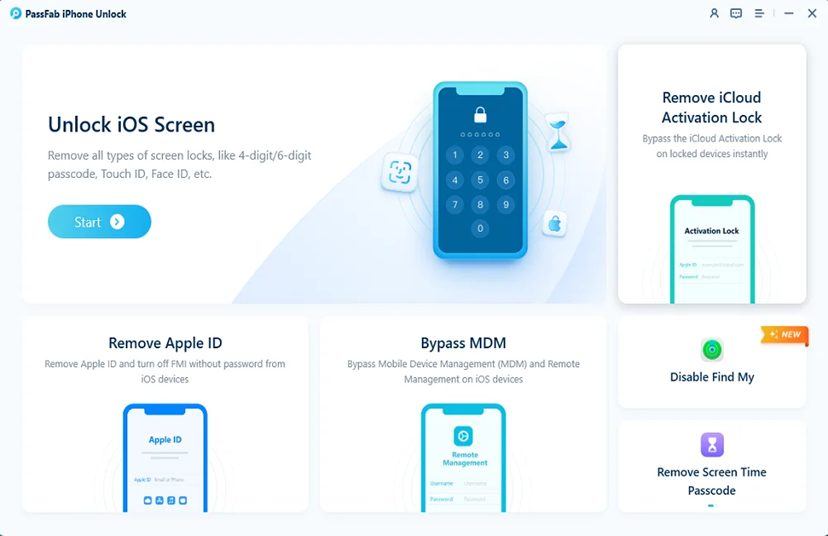
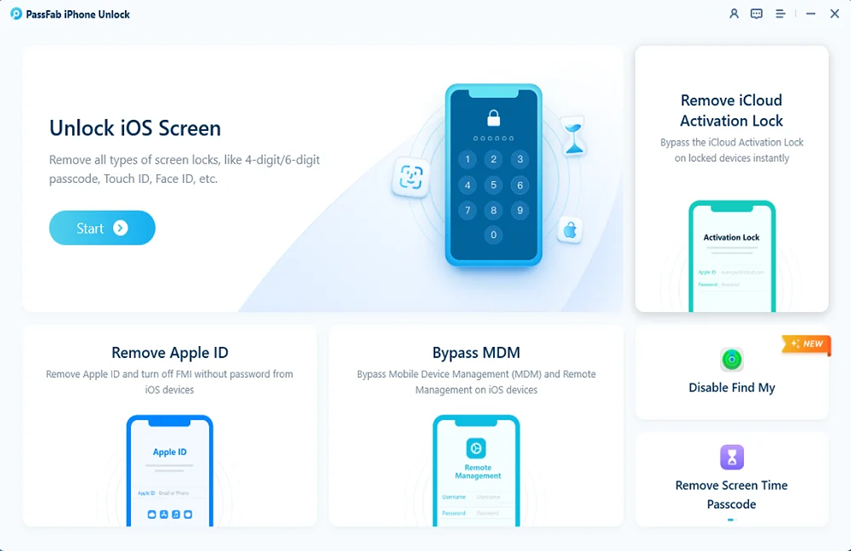
1.1 Key Features
- Unlock iOS Screen: Removes 4/6-digit passcodes, Touch ID, and Face ID on locked, disabled, or broken-screen devices.
- Remove Apple ID: Removes the account without its password. With Find My off, removal is quick and preserves data.
- Remove Screen Time Passcode: Removes it without data loss.
- Bypass MDM: Removes remote-management supervision without login credentials and data loss.
- Turn Off Find My: Disables Find My without having an Apple account.
- iCloud Activation Lock Removal: Remove the Activation Lock without jailbreak. Also, PassFab offers a dedicated Activation Lock removal tool.
1.2 Supported Devices and iOS Versions
The tool supports iOS/iPadOS 27, and you can run the free version first to see whether your device is supported. If it isn’t, the software says so before you take any further action. Support depends on the feature:
| Feature | Support |
| Unlock iOS screen | Latest iOS/iPadOS 27. The free scan confirms your model |
| Remove Apple ID | Latest iOS/iPadOS 27. Check compatibility using the free scan. Find My off: all devices. Find My on: requires an existing screen passcode and two-factor authentication |
| Remove Screen Time passcode | Latest iOS/iPadOS 27. Check compatibility using the free scan. |
| Bypass MDM | Latest iOS/iPadOS 27. Check compatibility using the free scan. |
| Turn off Find My | Latest iOS/iPadOS 27. Check compatibility using the free scan. Requires a screen passcode, Web Inspector enabled in Safari, and signing in with the linked Apple ID. |
| Remove Activation Lock | iPhone 5S to iPhone 17 Pro, iOS 12 to iOS 26.1. One-click method: A12 chip or later on iOS 18.0–18.7.2 or 26.0–26.1. Mainland China devices are not supported |
Two fixed points apply across modes. The tool operates over USB, and wireless connections are not supported. The core modes don’t need a jailbreak. But the exception is Activation Lock. If your device doesn’t qualify for the one-click method, Passfab iPhone Unlock also offers a jailbreak-based route.
Part 2: Is Passfab iPhone Unlock Safe and Legit?
Before using PassFab, it’s worth looking beyond its unlocking features. I examined its software safety, privacy practices, payment handling, potential device risks, and legal considerations to help you decide whether it’s trustworthy:
Software Safety:
Most users ask, “Is Passfab iPhone Unlock safe?” or “Is Passfab iPhone Unlock legit?” The answer is yes to both. PassFab is legitimate commercial software, but download it only from its official website. The software purchase is also secured with 256-bit SSL encryption and backed by a 30-day money-back guarantee.
Warning:
Avoid cracked, activated, or free serial-number copies from third-party sites. These are a real malware risk.
Legal Note:
Use PassFab only on devices you own or have permission to unlock. For employer-managed devices, contact IT, and for Activation Lock, use Apple’s official recovery process with proof of purchase.
Part 3: Does Passfab iPhone Unlock Work?
We tested an iPhone 13 running iOS 17.6 using a Windows 11 PC and a USB-C-to-Lightning cable. Also, we used a spare device with a deliberately enabled screen passcode. The free scan detected the phone and confirmed compatibility. We purchased a one-month plan and tested each feature.
| Feature | Test result | Time |
| Screen unlock | Successfully removed passcode | 18 min (12 min download) |
| Apple ID (Find My off) | Successfully removed | 3 min |
| Apple ID (Find My on) | Supported prerequisites met. Removal successful | 15 min |
| Screen Time | Passcode removed successfully | 4 min |
| MDM bypass | Successfully bypassed | 5 min |
| Turn off Find My | Successfully disabled | 3 min |
| Activation Lock | Successfully bypassed on supported device without jailbreaking | 12 min |
The Technical Breakdown
Each feature of Passfab iPhone Unlock functions differently, with its own requirements and limitations. Here’s a closer look at how the main unlocking methods work and what to expect:
1. Screen Unlock:
It needs to reinstall iOS through Recovery or DFU mode. PassFab requires at least 7 GB of free disk space for firmware. The process may erases the device, and download speed affects completion time.
2. Apple ID Removal:
With Find My off, removal is quick, and data is preserved. But with Find My on, a screen passcode and two-factor authentication are required, along with a firmware download.
3. Activation Lock:
The one-click method supports specific A12-or-newer devices and iOS versions. Unsupported devices require a jailbreak-based method. The phone restarted as a new device with its data and settings erased.
4. Find My:
Took 1–3 minutes. If a “Data Retrieval Error” appears, repeat the preparation steps.
Part 4: Passfab iPhone Unlock Free: What You Actually Get
The Passfab iPhone Unlock Free version is a trial, not a free unlock. Nothing is removed until you buy a license, and any page claiming otherwise is selling you a crack:
- What the Trial Does: It detects your device and checks whether your iPhone or iPad is supported. The trial is limited, and features unlock only after purchase. Treat the scan as both your compatibility check and your refund-risk check.
- What Requires a License: Actually removing a screen lock, Apple ID, Screen Time passcode, MDM profile, Find My, or Activation Lock.
- On “free” Cracked Versions: They aren’t worth it. Beyond the malware risk, a cracked copy can’t download the firmware package properly, and you’d be handing a stranger control of your phone.
Part 5: PassFab Download and Pricing
Get PassFab download only from its official product page. Windows supports versions 7–11, while Mac requires macOS 10.10 or later. The installer is under 20MB, but allow at least 7 GB of free space for firmware downloads. Windows and Mac licenses are not interchangeable. Prices checked on November 12, 2026. Each plan supports up to 5 mobile devices and 1 computer.
| Plan | Windows | Mac | Auto-renews? |
| 1 month | $35.95 | $37.95 | Yes |
| 1 year | $55.95 | $59.95 | Yes |
| Lifetime | $75.95 | $75.95 | No |
| Full Toolkit (1 month) | $42.95 | $41.95 | Yes |
| Full Toolkit (1 year) | $65.95 | $69.95 | Yes |
| Full Toolkit (lifetime) | $85.95 | $85.95 | No |
Full Toolkit adds Android unlocking and FRP bypass. All plans include a 30-day money-back guarantee, subject to the refund conditions discussed in Part 2. Monthly and yearly subscriptions renew automatically unless canceled before renewal.
For a one-time unlock, the 1-month plan is enough. However, lifetime costs only $75.95 compared with $71.90 for two monthly payments, making it better value if you expect to use PassFab again. It’s also worth considering if you manage several family phones or regularly resell used devices. Skip the Full Toolkit unless you need Android unlocking too.
Part 6: How to Use Passfab iPhone Unlock (Step by Step)
Unlocking a screen takes a few steps, and the main things to prepare are disk space and a good cable:
Before-you-start checklist:
- Backup: Back up the phone if you still can. If it’s locked and you can’t, find your most recent iCloud or computer backup, because screen unlock erases the device.
- Battery: Above 50%.
- Cable: Use the original (or MFi-certified) USB cable.
- Software: Install iTunes or the Apple Devices app on your computer so it recognizes the phone.
- Disk space and connection: At least 7 GB free for the firmware, on a stable network.
Example Task: Unlock the iPhone Screen:
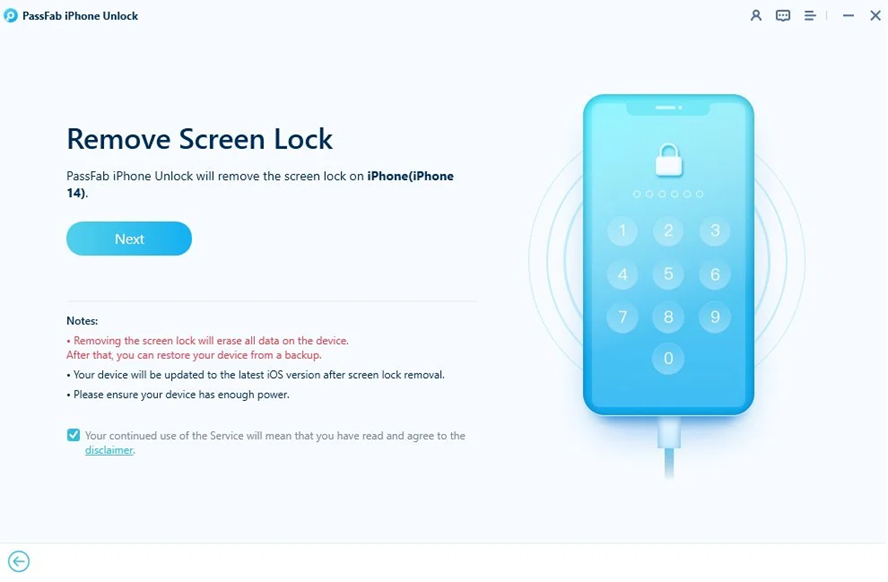
1. Launch Passfab iPhone Unlock and click “Start” on the “Unlock iOS Screen” mode.
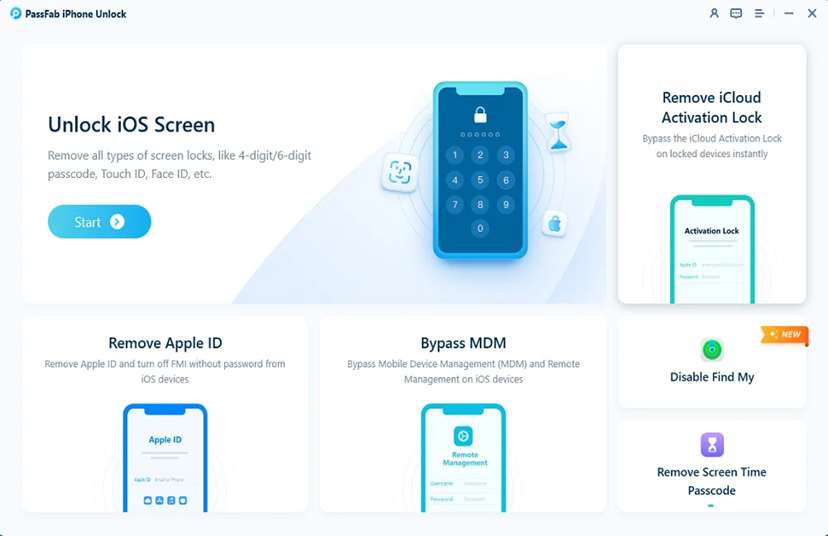
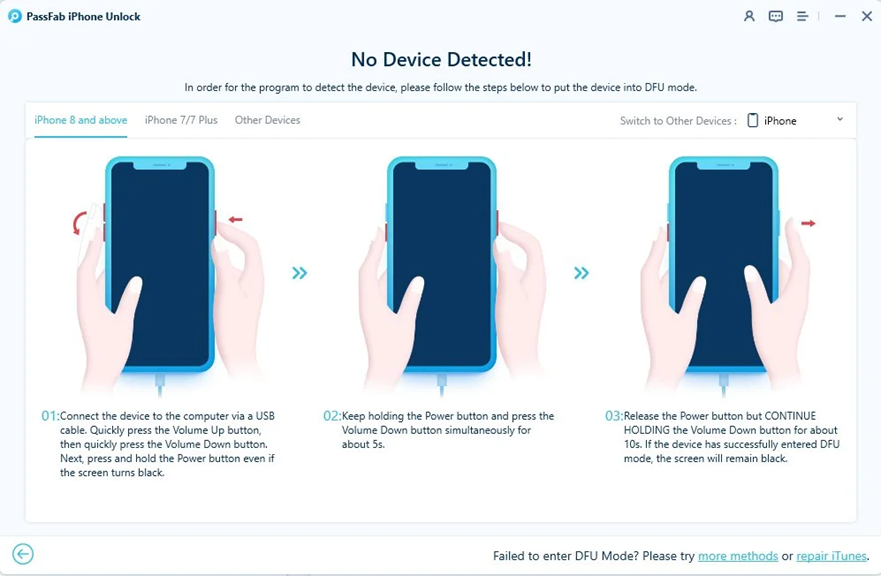
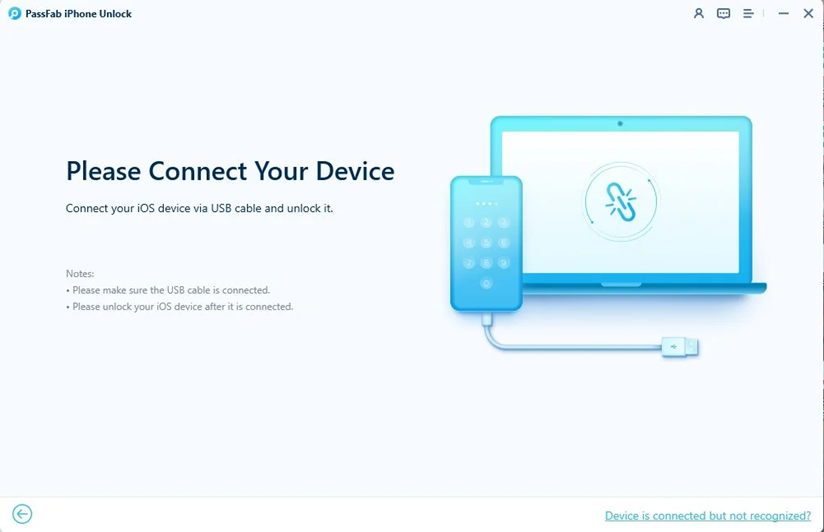
2. Connect the iPhone by USB and click “Next.” If it isn’t detected, follow the on-screen guide for Recovery or DFU mode.
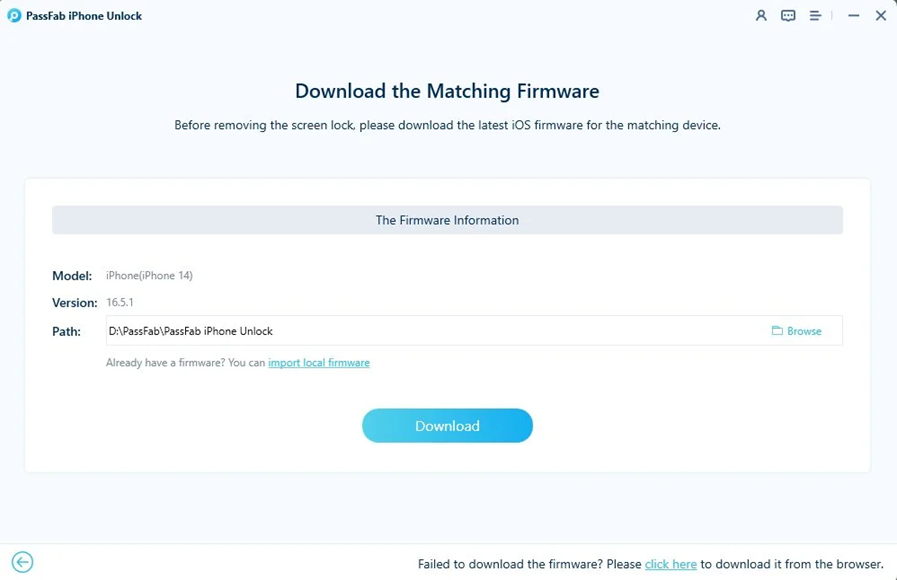
3. Choose a save path and click “Download” to fetch the firmware package. If the download fails, use the browser link or “import local firmware.”
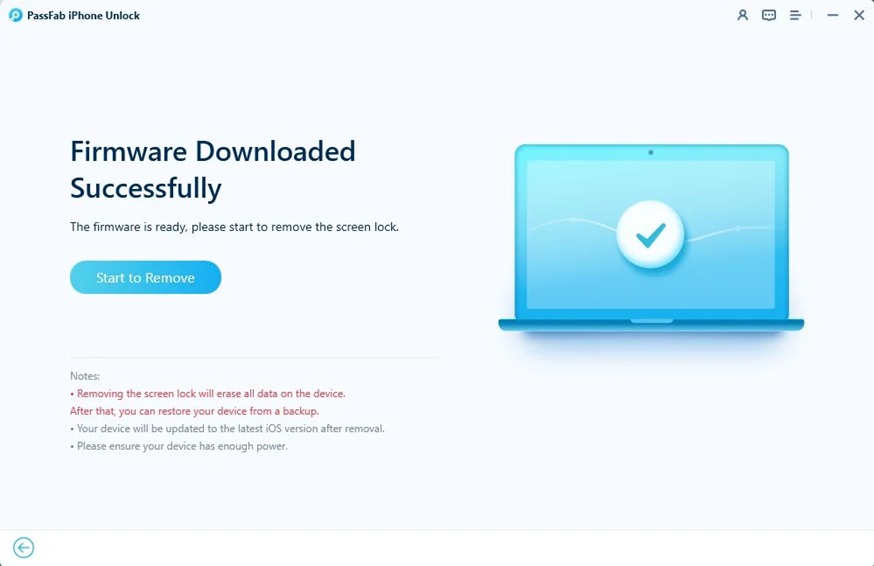
4. Click “Start to Remove” once the firmware is ready.
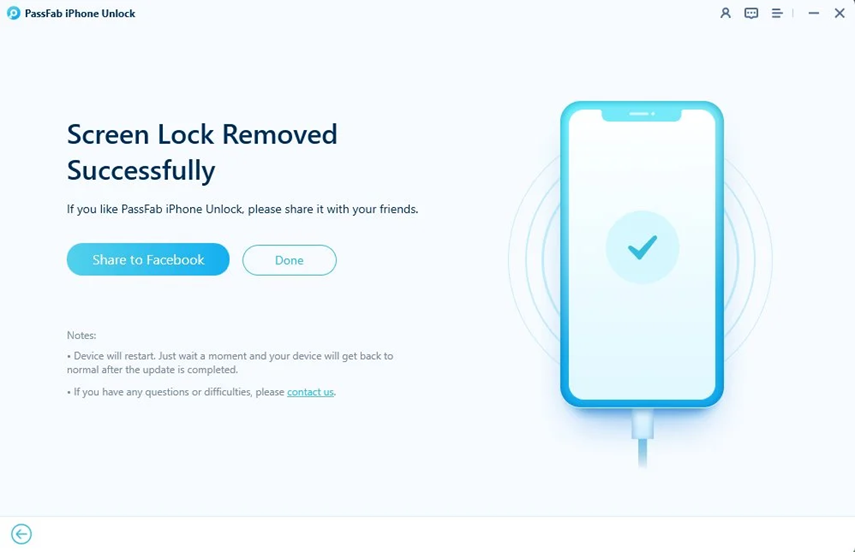
5. Wait for the removal to finish and keep the phone connected.
6. Set up the phone again. Choose a new passcode and Face ID or Touch ID, then restore a backup.
Other Main Modes:
1. Apple ID:
Prepare: Know whether Find My is on, and if it is, make sure a screen passcode and two-factor authentication are already set.
- Choose “Remove Apple ID” and connect the device (tap “Trust” the first time).
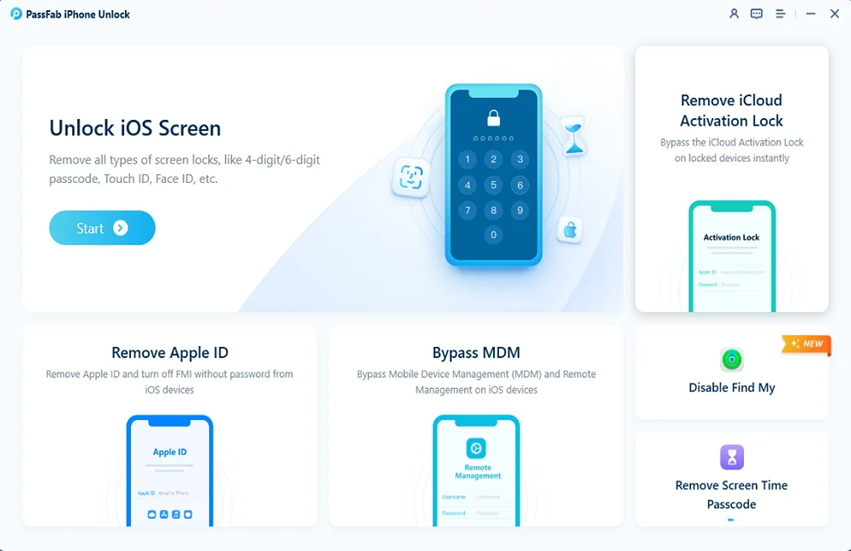
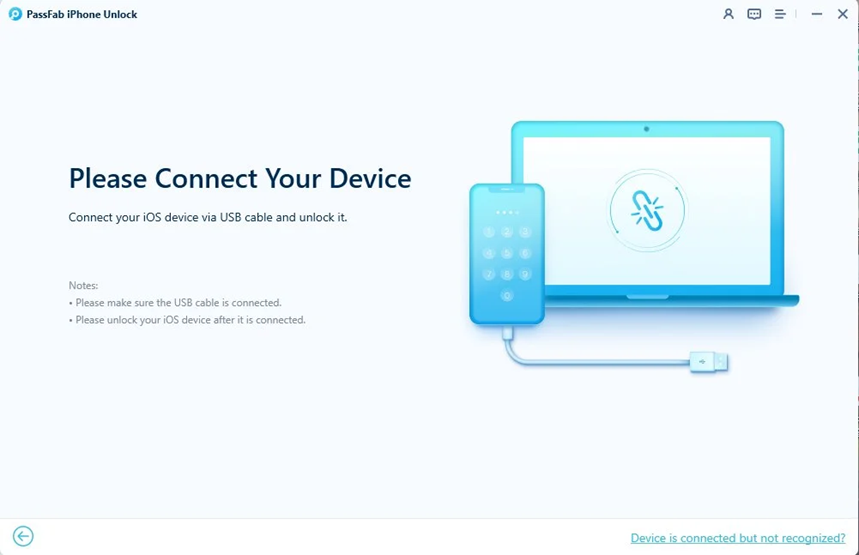
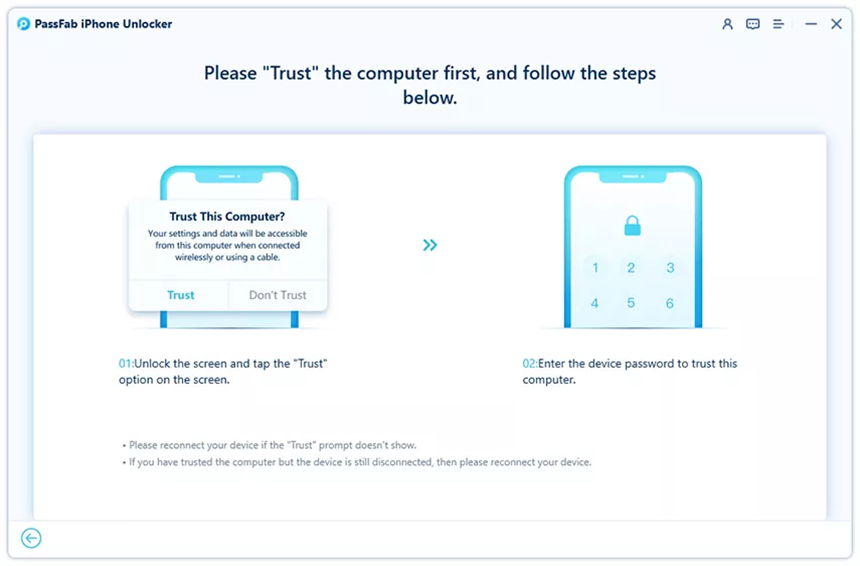
- Click “Start to Remove.” With Find My off, it proceeds immediately. But with Find My on, download the matching firmware first.
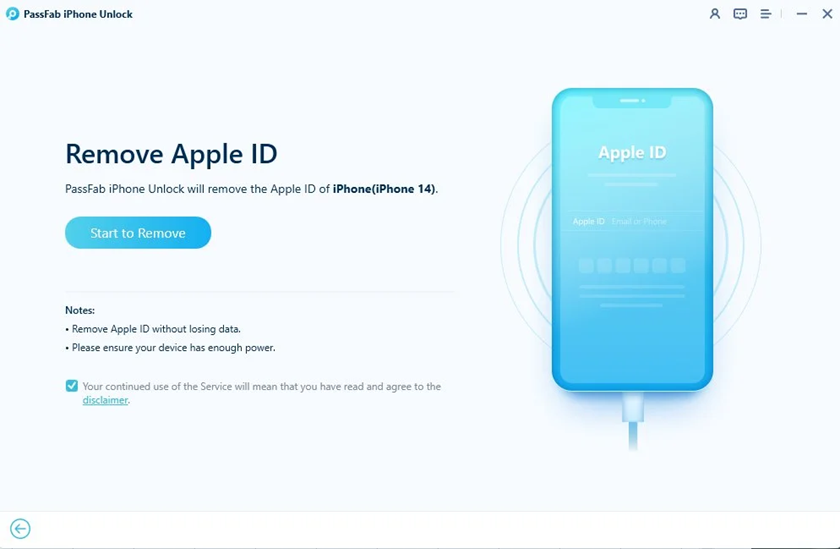
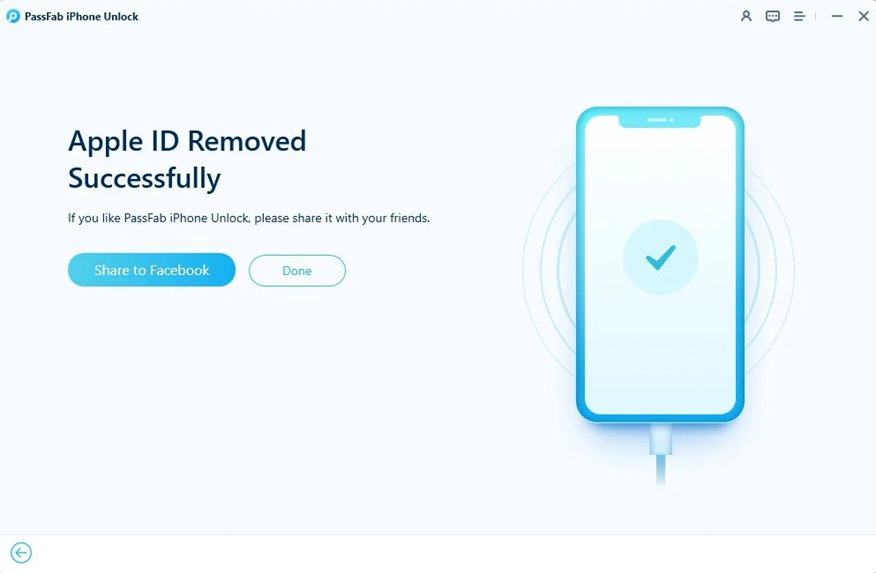
- Set the phone up and sign in with your own Apple ID.
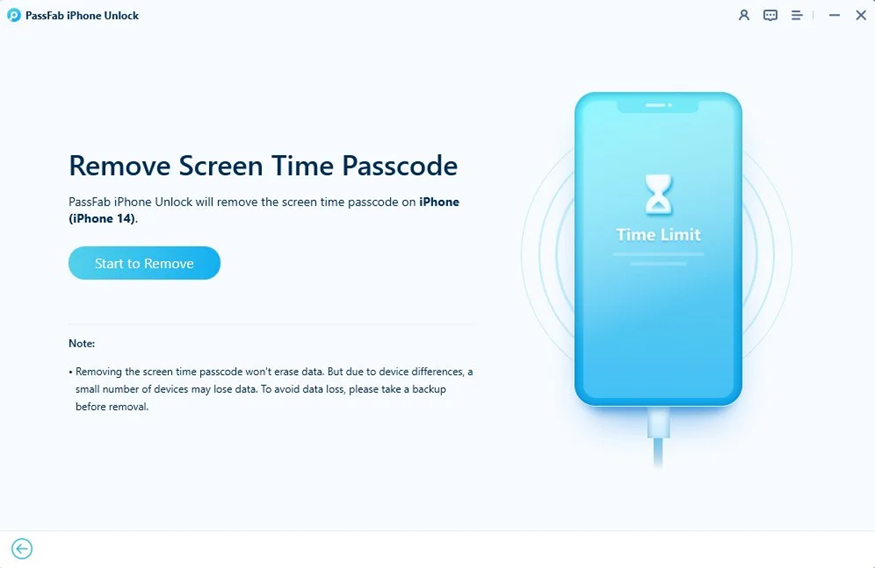
2. Screen Time:
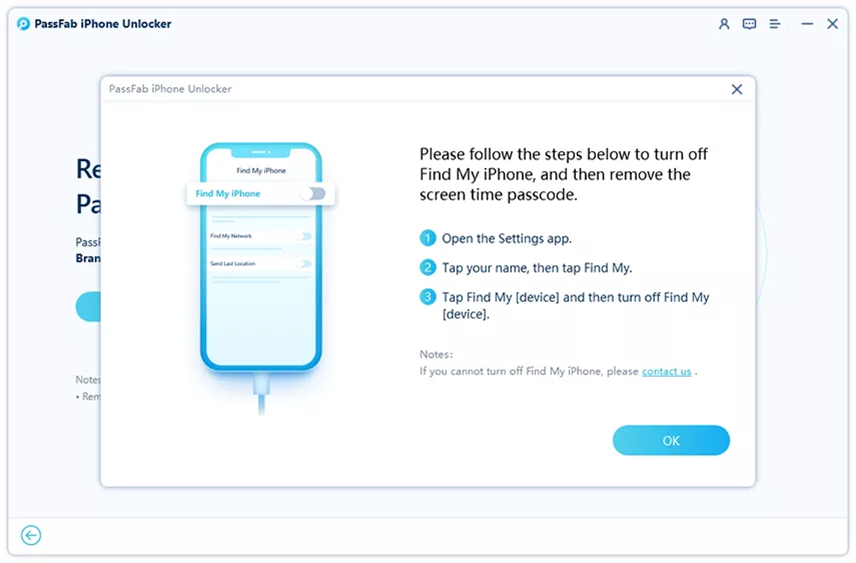
Prepare: turn off Find My if it’s on.
- Choose “Remove Screen Time Passcode” and connect the device.
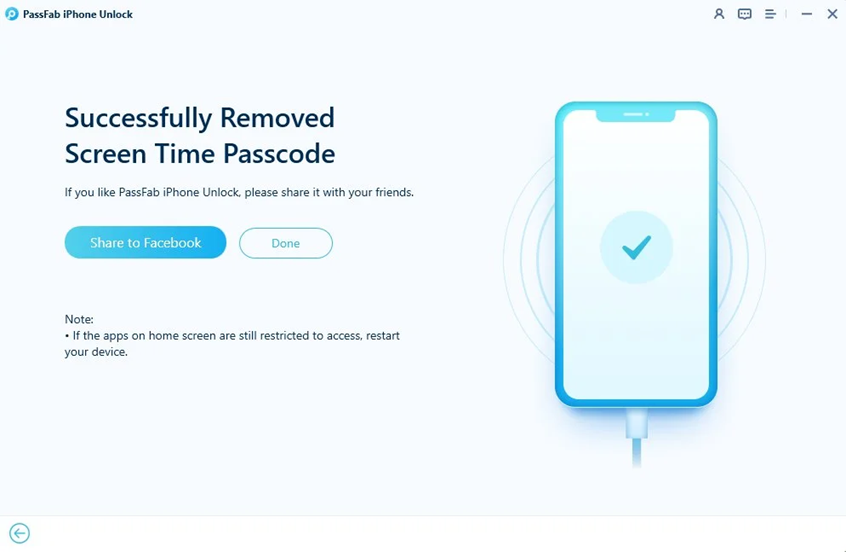
- Click “Start to Remove” and wait. Disable “Find My” if it’s on.
- During setup, choose “Set Up Later in Settings,” or the removal will fail.
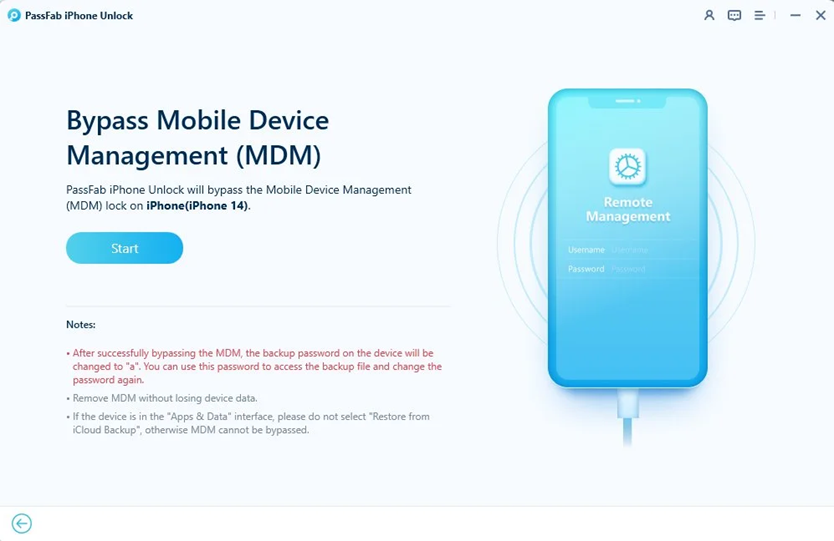
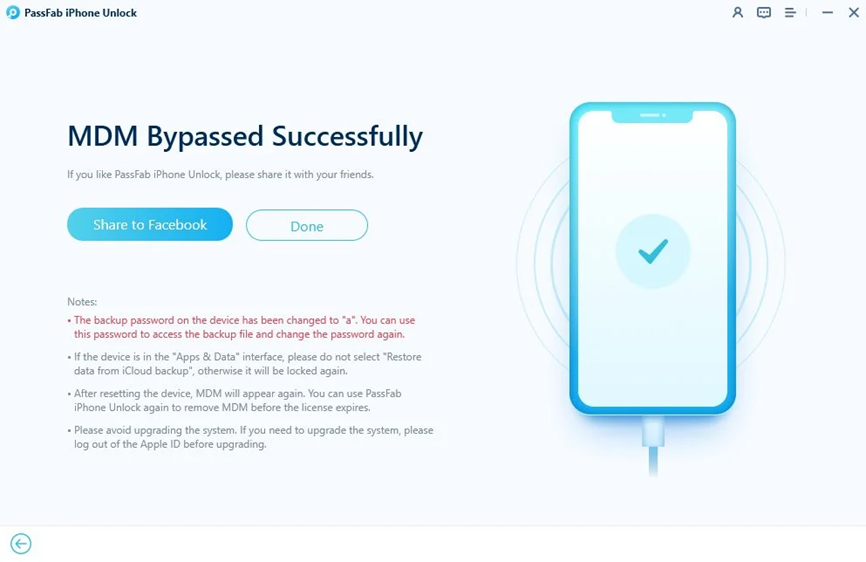
3. MDM:
Prepare: Confirm you’re authorized to remove the profile.
- Choose “Bypass MDM” and connect the device.
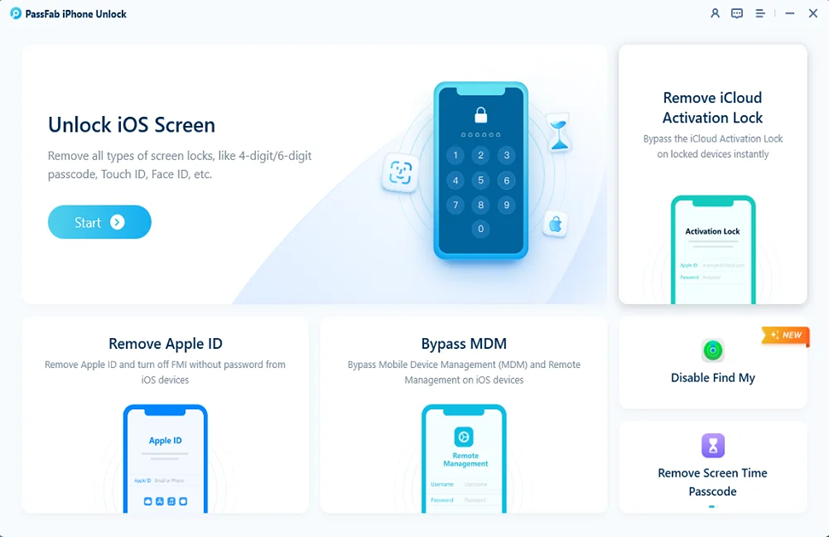
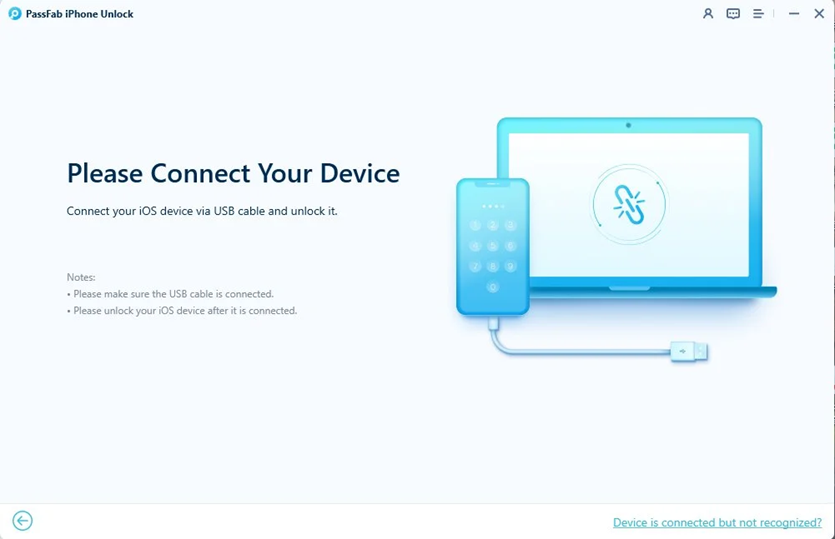
- Click “Start” and wait for the bypass to complete.
Part 7: Pros and Cons
Here are the pros and cons of Passfab iPhone Unlock:
| Pros | Cons |
| ● Covers screen passcodes, Apple ID, Screen Time, MDM, Activation Lock, and Find My in one tool.
● A free scan checks compatibility before you pay. ● No jailbreak for the core modes, and a lightweight installer. ● One license covers 5 mobile devices, with a no-renewal lifetime option. ● Quick and efficient support team. |
● Apple ID removal with Find My On has strict prerequisites (a screen passcode and two-factor authentication).
● Activation Lock support is conditional, and unsupported devices fall back to a jailbreak. |
FAQs About Passfab iPhone Unlock Review
1. Will Passfab iPhone Unlock erase my data?
Screen unlock removal erases data every time. Apple ID removal with Find My off, Screen Time removal, and MDM bypass are data-safe.
2. Can it remove iCloud Activation Lock?
Yes, from iPhone 5S to iPhone 17 Pro on iOS 12 to iOS 26.1, with a one-click method for A12 or later devices on specific iOS versions. For devices outside that range, use PassFab’s dedicated tool, PassFab Activation Unlock.
3. Is Passfab iPhone Unlock free to use?
No. The free version only detects your device and checks support. Removing any lock requires a paid license.
4. Why did the unlock fail, and what should I do?
Popular causes include an unsupported device or iOS version, Find My being on, a failed firmware download, or a bad cable or Recovery/DFU step. Re-run the steps, import the firmware manually if needed, and send PassFab support your logs and screenshots, since refunds for product problems depend on that cooperation.
5. Is there a refund if it doesn’t work?
Yes, within 30 days if the problem can’t be fixed after you work with support, and the refund deactivates your license. Change-of-mind refunds are excluded, as are cases where the tool functions as described but isn’t suited to your device.
Final Verdict
According to the Passfab iPhone Unlock review above, the tool is safe to download from the official site and legit as a business. It functions on supported devices and lock combinations. But screen unlock always wipes the phone. Buy it if you’ve exhausted Apple’s own recovery options and own the device. If you aren’t sure your model is supported, or you need a refund-proof guarantee, run the free scan first and only then decide.
You may also like to check out:
- Download: iOS 27.2.1 IPSW Links, OTA Update And iPadOS 27.2.1 Released
- Jailbreak iOS 27.2.1: Everything You Need To Know
- How To Fix Bad iOS 27 Battery Life Drain On Your iPhone
You can follow us on X, or Instagram, subscribe to our YouTube channel and even like our Facebook page to keep yourself updated on all the latest from Microsoft, Google, Apple, and the Web.