
If you are searching for how to fly in Pokémon GO, “flying” usually means changing the GPS location reported by your phone so Pokémon GO places your avatar somewhere other than your real physical location.
Players may use GPS location changing to explore areas with more PokéStops and Gyms, access different map locations, simulate walking routes, or control movement with a virtual joystick.
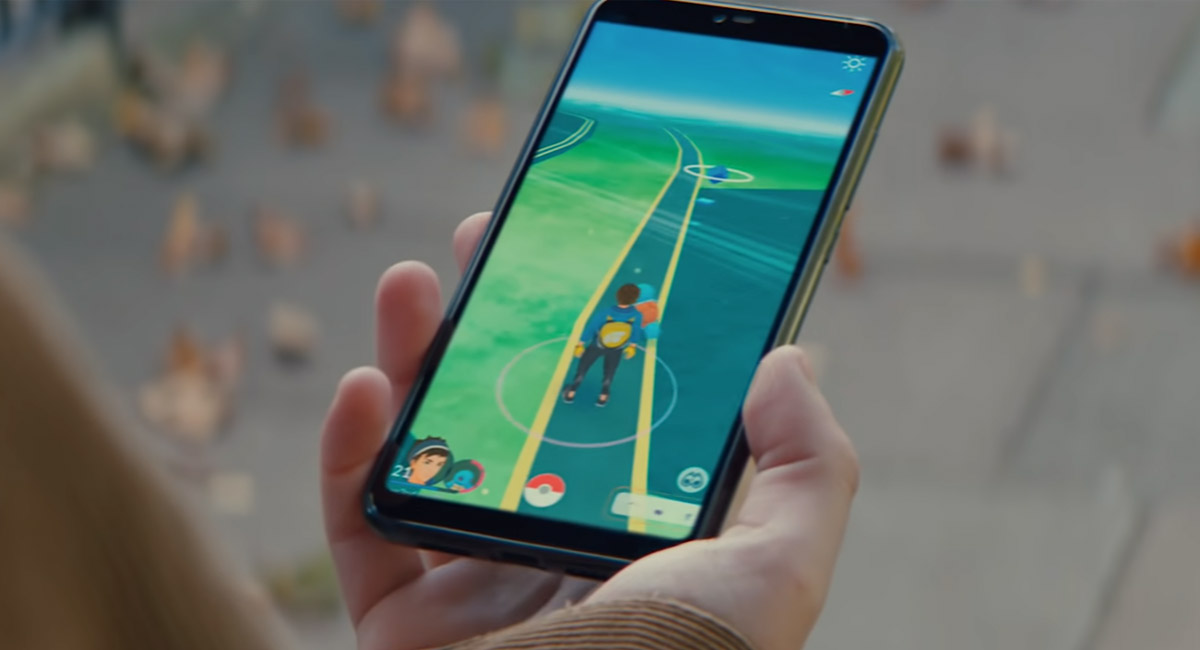

However, flying is not an official Pokémon GO feature. Changing or falsifying your location can violate Pokémon GO’s gameplay rules, so no GPS-changing method should be considered completely risk-free.
Quick Answer: How Do You Fly in Pokémon GO?
One of the simplest approaches for users who do not want to root Android or jailbreak an iPhone is to use a desktop GPS location changer such as Fonelora Location Changer.
Fonelora lets you connect a supported iPhone or Android device to a PC or Mac, choose a location on a map, and change the GPS position reported by the phone. It also provides Teleport, Single-Spot, Multi-Spot, Jump Teleport, and Joystick modes for different types of virtual movement.
The basic workflow is simple: connect your phone, choose a destination, change the GPS location, and then open Pokémon GO to check the new position.
How to Fly in Pokémon GO With Fonelora Location Changer
For users who prefer not to modify their phone’s operating system, the desktop version of Fonelora provides a relatively straightforward way to manage virtual GPS locations.
Step 1: Install and Launch Fonelora
Download and install Fonelora Location Changer on a Windows PC or Mac.
Launch the software and choose the appropriate location-changing mode. Depending on the device and workflow, the program may provide different connection or game modes.

Step 2: Connect Your iPhone or Android Phone
Connect your smartphone to the computer using the connection method supported by your device.
Unlock the phone and accept any trust, connection, or permission prompts that appear.
Android users may also be asked to enable developer-related settings depending on the selected mode.
Once the phone is recognized, Fonelora displays a map showing the current GPS position.

Step 3: Choose a New Location
Select Teleport Mode if you want to move directly to another location.
Enter a city, address, landmark, or GPS coordinate in the search field. You can also select a point directly on the map.
After choosing the destination, click Move to change the location reported by the phone.
Before opening Pokémon GO, you can verify the result in Apple Maps or Google Maps.
Step 4: Simulate Movement
If you want more than a simple location change, Fonelora provides several movement modes.
Joystick Mode lets you manually control the direction of your virtual movement.
Single-Spot Mode simulates travel between two locations, while Multi-Spot Mode lets you create a route through several selected points.
These modes are useful when you want to move around an area rather than repeatedly teleport between coordinates.
Fonelora also provides movement-speed controls and route features such as GPX support.

Step 5: Open Pokémon GO
Once the virtual location is active, open Pokémon GO and check whether your avatar appears at the selected destination.
Remember that changing your device location successfully does not make GPS spoofing officially supported by Pokémon GO.
Can You Use Fonelora Directly on Mobile?
Fonelora also provides a mobile option called Fonelora Go for iPhone and Android.
On Android, the app can use Android’s developer and mock-location settings, so users can control virtual location directly from the phone after configuration.
On iPhone, initial setup may require connecting the device to the desktop version first. After the required configuration is installed, the mobile app can be used directly on the phone.
The mobile version also includes common location-changing functions such as Teleport, route simulation, and joystick movement.
If you mainly use Pokémon GO at a desk, the desktop version provides a larger map and easier route control. If you want to manage virtual location directly from your phone, the mobile version may be more convenient after setup.

What Does “Flying” Mean in Pokémon GO?
“Flying” is a general community term, but several different actions fall under it.
Spoofing means changing the GPS location reported by your phone.
Teleporting means instantly changing from one GPS position to another.
Joystick movement lets you manually control virtual movement in different directions.
Route simulation automatically moves your GPS position along a selected path.
Understanding these differences helps when choosing a GPS location tool because not every product supports the same movement modes.
iPhone vs. Android: What Changes?
The goal is the same on both platforms, but the setup process differs.
How to Fly in Pokémon GO on iPhone
iPhone users who want to avoid jailbreaking commonly look at desktop-assisted location changers.
With this type of setup, the computer controls the virtual GPS position while the iPhone receives the changed location.
The typical process is to connect the iPhone, select a destination in the desktop software, apply the location, and verify it on the phone.
Mobile tools such as Fonelora Go may also be available, although initial iPhone configuration can still require a computer.
How to Fly in Pokémon GO on Android
Android provides additional developer-level location controls.
Some mobile location-changing apps use Developer Options and the Select mock location app setting instead of requiring root access.
Desktop-assisted Android methods are also available if you prefer to control the location from a PC or Mac.
The exact menu path may vary between Samsung, Google Pixel, and other Android manufacturers.
Do You Need to Root or Jailbreak Your Phone?
Not necessarily.
Desktop GPS changers can often work without rooting Android or jailbreaking an iPhone.
This is one reason many users prefer desktop-assisted tools: they can change the device’s reported GPS location without making deeper modifications to the operating system.
Phone-only methods vary more widely. Some may use normal mock-location settings, while others may require modified apps, sideloaded software, root access, or jailbreak.
Always check what a method requires before installing it.
How to Restore Your Real GPS Location
A virtual GPS location can affect more than Pokémon GO. Maps, weather apps, ride-hailing services, photo geotags, and other location-based apps may also see the changed position.
When you finish, close Pokémon GO and other location-dependent apps. Return to Fonelora and use its Reset Location, Restore Real Location, or equivalent option.
Stop any active route, disconnect the phone if necessary, and restart the device.
Then open Apple Maps or Google Maps and confirm that your real physical location has returned.
Restarting the phone is especially useful if another app continues to display the virtual location.
Can You Fly in Pokémon GO Without Getting Banned?
No GPS location-changing method can honestly guarantee that.
Pokémon GO’s rules prohibit falsifying location, so using a desktop tool instead of a modified phone does not remove all account risk.
You may see websites or videos advertising methods as “100% safe,” “undetectable,” or “ban-proof.” Those claims should be treated carefully because software behavior and anti-cheat systems can change.
A method that works technically is not necessarily officially permitted.
What About Pokémon GO Cooldowns?
Pokémon GO spoofing communities often discuss cooldowns after changing location, especially when moving large distances.
Some GPS location tools also include cooldown timers or reminders.
However, a cooldown should not be treated as guaranteed protection from account enforcement. Following a particular waiting period does not make location spoofing officially compliant with Pokémon GO’s rules.
If you are specifically researching warnings, interaction restrictions, or soft bans, see our separate guide to Pokémon GO soft bans and account restrictions.
Does a VPN Let You Fly in Pokémon GO?
No. A VPN and a GPS location changer serve different purposes.
A VPN mainly changes your network connection and apparent IP location. A GPS changer modifies the location coordinates reported by your phone.
For example, connecting to a VPN server in another country does not automatically make your phone’s GPS report that location.
If you want to change where a location-based app places your device on a map, you need GPS location simulation rather than a VPN alone.
Can You Fly in Pokémon GO Without a Computer?
Yes, but it depends on the device and software.
Android users can use some mobile GPS tools through Developer Options and mock-location settings without rooting the phone.
Fonelora Go also provides a mobile Android option.
On iPhone, mobile GPS-changing solutions may require an initial computer-based setup before they can work independently on the device.
Other phone-only methods may rely on modified game packages, sideloaded applications, root, or jailbreak, so check exactly what is being installed before choosing a method.
Frequently Asked Questions
What is the easiest way to fly without rooting or jailbreaking?
A desktop-assisted GPS changer is one of the simpler approaches to understand. Fonelora Location Changer lets you control GPS location from a PC or Mac without requiring a traditional rooted Android or jailbroken iPhone setup.
Can Fonelora simulate walking?
Yes. Its Single-Spot, Multi-Spot, and Joystick modes can simulate virtual GPS movement instead of only changing directly from one location to another.
Can I enter exact GPS coordinates?
Yes. You can search for a destination or enter GPS coordinates when selecting a virtual location.
Can I use Fonelora on my phone?
Yes. Fonelora Go provides mobile location-changing functions for supported iPhone and Android devices. The setup requirements differ between the two platforms.
Does a cooldown make Pokémon GO spoofing safe?
No. Cooldown behavior should not be treated as guaranteed protection against account enforcement.
Final Thoughts
If you want to understand how to fly in Pokémon GO, you do not necessarily need to start with rooting, jailbreaking, or complicated system modifications.
A desktop tool such as Fonelora Location Changer provides a relatively simple workflow: connect your iPhone or Android device, select a destination, click Move, and use Teleport, route simulation, or Joystick Mode depending on how you want to control the virtual GPS location.
For users who prefer phone-based control, Fonelora Go also provides a mobile option, although setup requirements differ between iPhone and Android.
Whichever method you choose, remember that technical compatibility and account safety are separate issues. Understand how the selected method works, check its current device requirements, and know how to restore your real GPS location before using it.
You may also like to check out:
- Download iOS 27 Final IPSW Links And OTA Update From Here
- Jailbreak iOS 27: What You Need To Know Before Update
- How To Fix Bad iOS 27 Battery Life Drain On Your iPhone
You can follow us on X, or Instagram, subscribe to our YouTube channel and even like our Facebook page to keep yourself updated on all the latest from Microsoft, Google, Apple, and the Web.