
Switching from an Android phone to a new iPhone is exciting but the thought of losing your WhatsApp chats, photos and videos can be stressful.
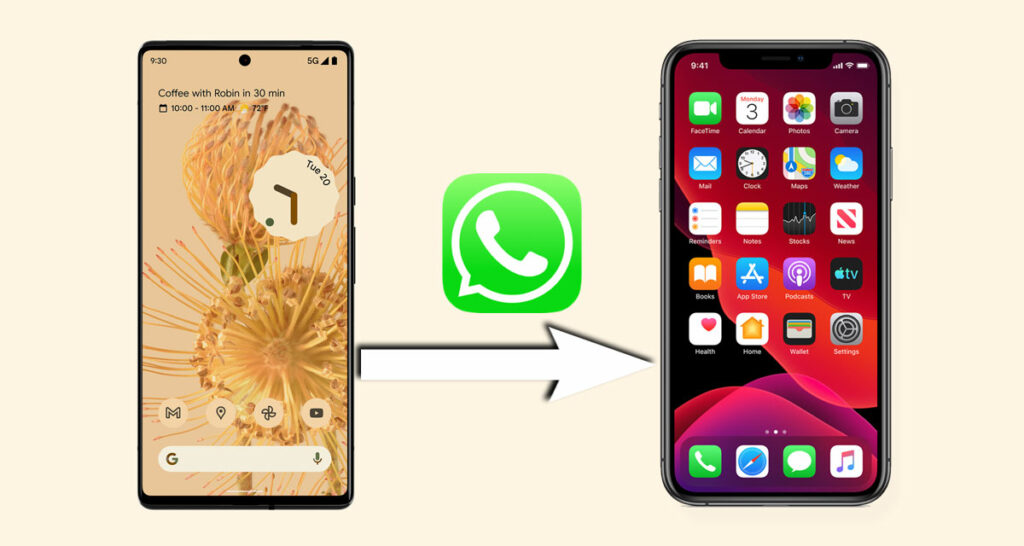
If you’re wondering how to transfer WhatsApp from Android to iPhone or how to transfer WhatsApp to a new phone, don’t worry this guide will walk you through the process with clear and practical steps. Using tools like iMyFone iMyTrans you can seamlessly move your WhatsApp data without losing a single message. Let’s dive into the best methods to ensure a smooth transition.
Why Transferring WhatsApp Data Is Challenging
WhatsApp stores data differently on Android and iPhone which makes direct transfers tricky. Android typically backs up to Google Drive while iPhones use iCloud and these platforms don’t communicate directly. Additionally WhatsApp’s encryption ensures your data is secure but complicates cross-platform transfers. Fortunately tools like iMyFone iMyTrans simplify the process which allows you to transfer WhatsApp to a new phone without hassle.
First Method: Transfer WhatsApp from Android to iPhone with iMyFone iMyTrans
The easiest and most reliable way to transfer WhatsApp from Android to iPhone is by using iMyFone iMyTrans which is a trusted tool designed to move WhatsApp data including chats as well as media and settings across platforms without data loss. Here’s how to do it:
Step 1: Visit the official iMyFone website and install iMyFone iMyTrans on your computer (available for Windows and Mac).
Step 2: Use USB cables to connect your Android phone and iPhone to your computer. Ensure both devices are unlocked and grant necessary permissions.

Step 3: Open iMyFone iMyTrans and choose “WhatsApp” from the main interface and then click on either “Transfer” or “Transfer and Merge” options.

Step 4: If the destination device is an iPhone you must ensure that ‘Find My iPhone’ is turned off on the target iPhone and then install WhatsApp on it.
Step 5: Click “Transfer” to begin the process. iMyFone iMyTrans will back up your WhatsApp data from the Android device and transfer it to your iPhone. Keep both devices connected until the process completes.

Step 6: Once the transfer is done your iPhone may reboot. Open WhatsApp on your iPhone and then log in with the same phone number as well as verify that your chats, media and settings have transferred successfully.

Why Choose iMyFone iMyTrans?
- Transfers all WhatsApp data including messages and photos as well as videos and even stickers.
- No need to factory reset your iPhone unlike some other methods.
- User-friendly interface which is perfect for non-tech-savvy users.
- Compatible with all iPhone and Android models including the latest iPhone 16 and Android 12+ devices.
- Offers a free backup feature to safeguard your data before transferring.
For more details you can check out iMyFone iMyTrans features.
Second Method: Using Move to iOS App (Official Method)
Apple’s Move to iOS app is a free option to transfer WhatsApp to a new phone but it has limitations such as requiring a factory-reset iPhone. Here’s how to use it.
- Prepare Your Devices: Ensure your Android runs OS Lollipop (5.0) or higher, your iPhone runs iOS 15.5 or later, and both have WhatsApp updated (Android: 2.22.7.74+, iPhone: 2.22.10.70+). Both devices must be connected to the same Wi-Fi and a power source.
- Reset Your iPhone: If your iPhone is already set up, go to Settings > General > Transfer or Reset iPhone > Erase All Content and Settings. Follow the prompts to reset it.
- Set Up Your iPhone: During the iPhone setup, reach the “Apps & Data” screen and select “Move Data from Android.”
- Open Move to iOS on Android: Download the Move to iOS app from the Google Play Store on your Android. Open it and tap “Continue,” agreeing to the terms.
- Enter the Code: A code will appear on your iPhone. Enter it in the Move to iOS app on your Android to pair the devices.
- Select WhatsApp: On the Transfer Data screen you can choose WhatsApp and tap “Start.” WhatsApp will prepare the data for transfer which will then sign you out of your Android account.
- Complete the Transfer: Tap “Continue” in the Move to iOS app to transfer the data. Once done you can install WhatsApp on your iPhone and then log in with the same phone number and tap “Start” to restore your chats.
Limitations:
- Requires a factory-reset iPhone which may be inconvenient.
- Cannot merge existing WhatsApp data on the iPhone.
- Call history and display names won’t transfer.
Third Method: Transfer WhatsApp Chats via Email (Manual Method)
If you only need to transfer specific chats and don’t mind them not syncing with WhatsApp on your iPhone then you can use the email export method. Note that this method doesn’t restore chats to WhatsApp but saves them as viewable files.
- Open WhatsApp on Android: Launch WhatsApp and select the chat you want to transfer.
- Export Chat: Go to Settings > Chats > Chat History > Export Chat. Choose the desired chat and select whether to include media.
- Send via Email: Select your email app (e.g., Gmail), enter your email address and then send the chat.
- Access on iPhone: Open the email on your iPhone and download the attached text file. You may need a text viewer app to read it.
Limitations:
- Chats are not integrated into WhatsApp on your iPhone.
- Only transfers one chat at a time, which can be time-consuming for multiple chats.
- Media files are limited to 25MB per email.

For most users iMyFone iMyTrans is the best option due to its flexibility and ease of use. Learn more about backing up WhatsApp data for additional security.
Conclusion
Transferring WhatsApp from Android to iPhone doesn’t have to be a headache. Whether you’re moving to an iPhone 16 or another model tools like iMyFone iMyTrans make it easy to transfer WhatsApp to a new phone without losing your chats as well as media and even settings. Unlike the Move to iOS app which requires a factory reset or the email method which is then limited, iMyFone iMyTrans offers a seamless user-friendly solution. Ready to get started? Click the button below to download iMyFone iMyTrans and keep your WhatsApp memories safe.
iMyFone iMyTrans: Download Now!
You may also like to check out:
- iOS 26 Hidden Features Worth Checking Out
- iOS 26 Beta 1 OTA Profile Update Download: Here’s How To Install It [Guide]
- Jailbreak iOS 18.5 Latest Status Update For iPhone Users
- Download: iOS 26 Beta 1 IPSW Links For iPhone Released
- iOS 26 Beta Compatibility For iPhone Models
- Download: iOS 18.5 Final IPSW Links, OTA Update For iPhone, iPadOS 18.5 For iPad Released
You can follow us on X, or Instagram, subscribe to our YouTube channel and even like our Facebook page to keep yourself updated on all the latest from Microsoft, Google, Apple, and the Web.
