
Here’s how to play GTA 6 on iPhone Duo in full screen edge-to-edge mode instead of having letterboxing black bars on top and bottom.
As you may already know by now, GTA 6 is out and is available currently only on PS5 and Xbox Series S/X. Now, you may also already know by now that you can play GTA 6 on any mobile device of your choice by using Sony’s Remote Play app.
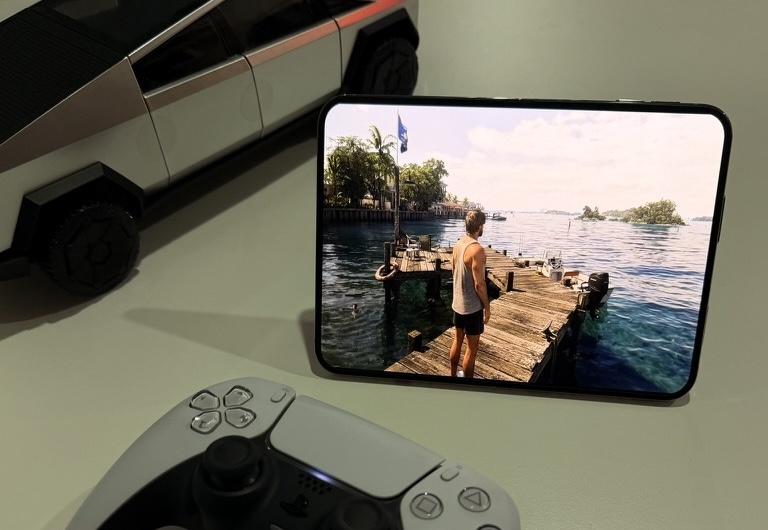

Unfortunately though, Sony still hasn’t updated Remote Play for iPhone Duo, and while it still works fine, it doesn’t look as great because video stream’s aspect ratio shows black bars (letterboxing) on top and bottom when playing on the bigger inner screen.
This is where a third-party app called Asobi: Remote Play comes into play. Not only it is updated for iPhone Duo, it has some extra features that lets you stretch the screen without it looking bad, giving full screen, edge-to-edge experience on iPhone Duo.
The app also works on iPad, Apple TV, Mac and even Apple Vision Pro, providing the ability to go edge-to-edge full screen on any of these devices. This is thanks to the new “Spatial fill” mode which makes most of what’s on screen stay in proportion without looking too much distorted. In addition to Spatial fill, the app also offers multiple zoom levels like Fit, fill, safe-zoom (avoids the rounded corners), and pinch-to-zoom so that you can frame the picture exactly how you want it on any screen.
On the iPhone Duo, it also supports various different poses the device is capable of, including the ability to play the game on outer screen in closed pose, standing tent pose on outer screen, landscape and portrait pose on inner screen, and even the seated pose on inner screen. In portrait pose and seated pose on the inner display, it shows the video stream on the top half of the display and DualSense controls on the lower half.
There’s also a feature called Lens mode on iPhone Duo when using it without physical controller. This lets you add multiple lens section on the lower half of the screen in Portrait or Seated pose to show things like mini maps, health-bars and more!
I have attached some photos of how it looks on iPhone Duo below:


Asobi: Remote Play is available to download from App Store, and while you can use it for free with basic features, some of the premium features require in-app purchase.
You may also like to check out:
- Download: iOS 27.2.1 IPSW Links, OTA Update And iPadOS 27.2.1 Released
- Jailbreak iOS 27.2.1: Everything You Need To Know
- How To Fix Bad iOS 27 Battery Life Drain On Your iPhone
You can follow us on X, or Instagram, subscribe to our YouTube channel and even like our Facebook page to keep yourself updated on all the latest from Microsoft, Google, Apple, and the Web.