You can change your iPhone’s IP address for free in a few taps. The right method depends on which of your iPhone’s two IP addresses you want to change.
One is the local IP your Wi-Fi router gives your iPhone. The other is the public IP that every website and app sees, and it’s the one most people want to change.
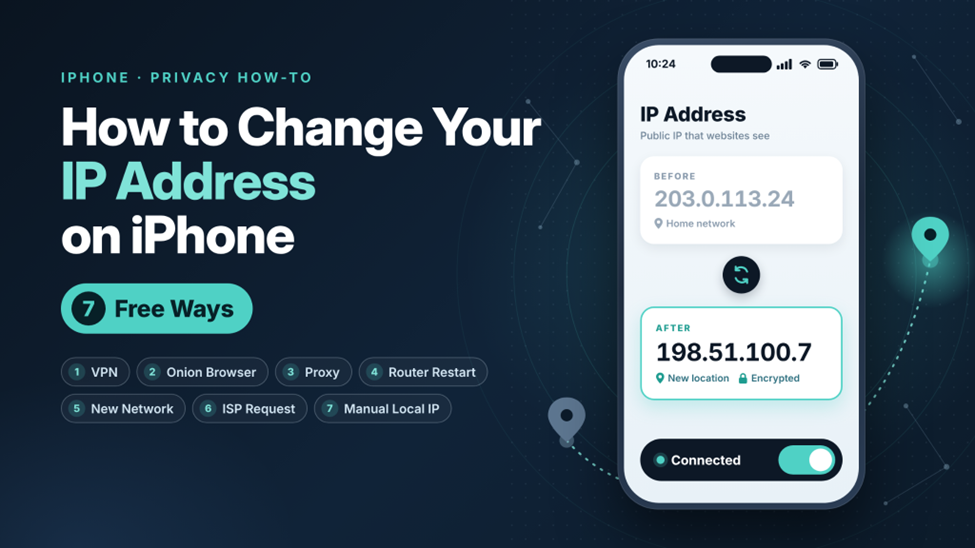
The quickest way to get a new public IP is a free VPN tool. It sends your traffic through a server in a location you pick, so websites see that server’s IP address instead of yours. It also encrypts your connection, which matters on hotel and café Wi-Fi.
TL;DR
Six methods change your public IP, and one changes your local IP:
| Method | IP Changed | Encrypts Traffic | Speed | Best For |
| VPN | Public | Yes | Slight drop | Privacy, choosing a location |
| Onion Browser (Tor) | Public, in the app only | Yes, in the app | Slow | Anonymous browsing |
| Proxy server | Public, one tab or one Wi-Fi network | Mostly no | Varies | A quick change for one site |
| Router restart | Public, home Wi-Fi | No | Unchanged | Refreshing a dynamic IP |
| Different network | Public | No | Varies | The quickest change |
| ISP request | Public | No | Unchanged | Static IP changes |
| Manual setup | Local | No | Unchanged | Fixing local IP conflicts |
What Is an IP Address?
An IP address is your device’s address on a network. Data uses it to find you, the way a delivery driver uses a street address. Your internet service provider (ISP) or wireless carrier gives you a public IP, and your router gives each device at home a local one.
Types of IP Addresses
Your iPhone uses both:
- Public IP address: Your ISP assigns it to your home router, or your carrier assigns it to your iPhone on cellular data. Every device on your Wi-Fi shares it, and it’s the IP websites see.
- Local IP address: Your router gives each device on your network its own address, also known as a private IP. It only works inside your network.
Think of the public IP as an apartment building’s street address and the local IP as your apartment number. Outsiders only see the street address, so that’s the one most people need to change.
One setting confuses people: Private Wi-Fi Address changes your iPhone’s MAC address, a hardware ID, not its IP address.
Why Change Your IP Address on iPhone?
For a Private IP Address
Changing your local IP fixes home network problems, not privacy ones:
- IP conflicts: Two devices get the same local address, and one drops off the network.
- Network testing: A fixed address makes it easier to test connections between devices.
- Device rules: Your router can apply settings to an address reserved for your iPhone.
For a Public IP Address
This changes what websites see:
- Privacy: Ad networks and websites use your IP to connect your visits and guess your location. A new IP cuts that link.
- Public Wi-Fi: On hotel, airport or café Wi-Fi, a VPN gives you a new IP and encrypts your traffic.
- Travel: Abroad, a server in your home country lets your accounts see a familiar location.
Note your current IP before you start so you can confirm the change.
How to Find Your IP Address on iPhone
Find Your Local IP Address
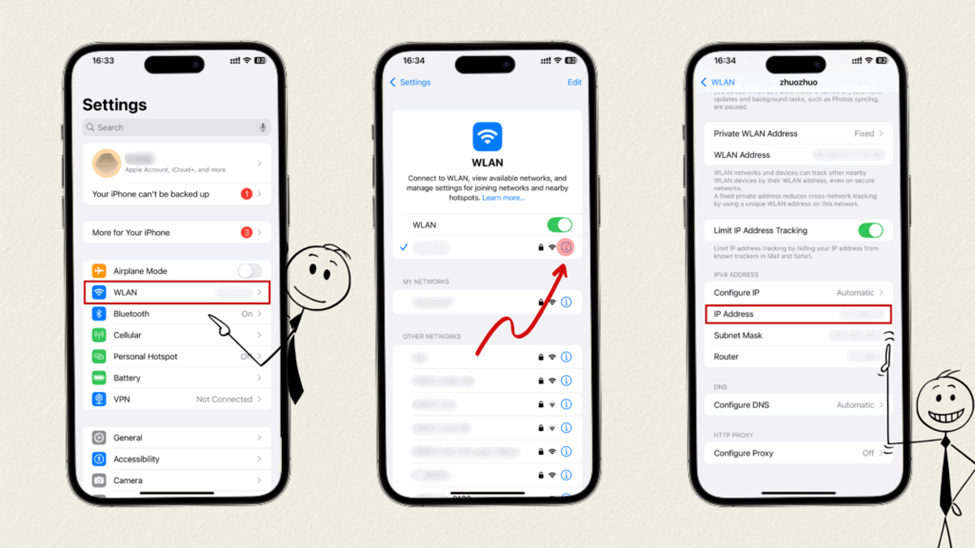
Step 1: Open Settings and tap Wi-Fi.
Step 2: Tap the More Info button (the “i” icon) next to your network.
Step 3: Look for IP Address under IPv4 Address. That’s your local IP.
Find Your Public IP Address
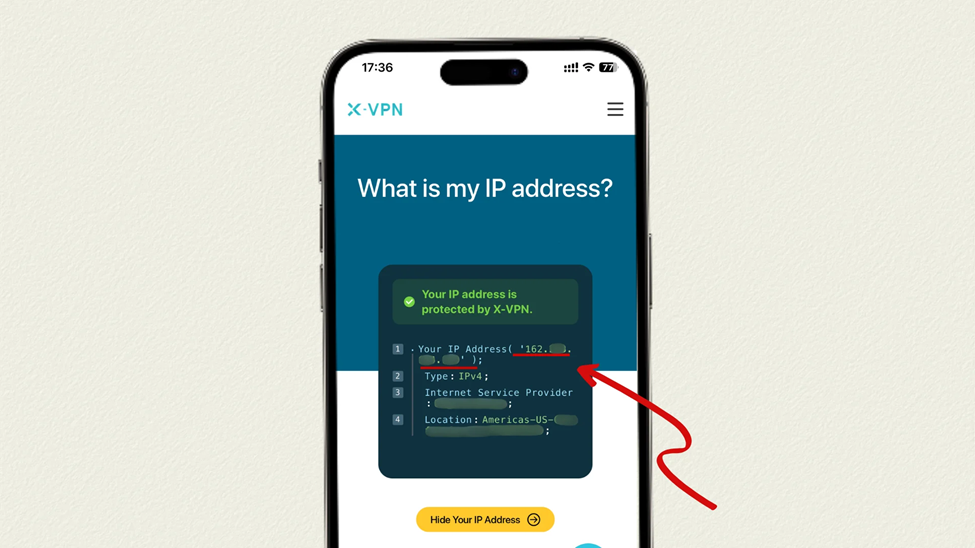
Settings doesn’t show your public IP. Open Safari and visit an IP lookup site, which shows your public IP, your ISP and your approximate location.
How to Change Your Public IP Address on iPhone
Ways 1 to 6 change your public IP. The seventh method, for your local IP, has its own section below.
Way 1: Use a VPN
Best for: Privacy and choosing a location.
A VPN is the simplest way to change your public IP on iPhone. You choose the server location, and the connection between your iPhone and the server is encrypted.
If you don’t want to pay, X-VPN’s free iPhone app covers the basics. There’s no account to create and no data cap, and you can pick from 26 free locations in 15 countries. Your traffic is encrypted with AES-256-GCM.
Step 1: Download X-VPN from the App Store and open it. You don’t need to sign up.
Step 2: Tap Server Select.
Step 3: Choose a free location and connect. Your public IP is now the server’s.
Pros: Quick setup, your choice of location, and encrypted traffic on any network.
Cons: Encryption costs a little speed, and the free app shows ads and has fewer locations than the paid plan.
Way 2: Use Onion Browser (Tor)
Best for: Anonymous browsing.
Tor sends your traffic through three volunteer-run relays, so websites see the last relay’s IP. There’s no official Tor Browser for iPhone. The Tor Project recommends Onion Browser, a free, open-source app.
Step 1: Download Onion Browser from the App Store.
Step 2: Open it and connect to Tor.
Step 3: Browse inside the app. The sites you visit see a Tor IP address.
Pros: Free, with strong anonymity.
Cons: It’s slow, you can’t easily pick a country, some sites refuse Tor traffic, and only pages in the app get the new IP. Apple also makes iOS browsers use WebKit, which limits Onion Browser’s privacy protections.
Way 3: Use a Proxy Server
Best for: A quick change for one site.
A proxy sits between you and a website, so the site sees the proxy’s IP. Most free proxies don’t encrypt anything, which leaves your data readable.
Option 1: In Settings. Go to Settings > Wi-Fi, tap the More Info button next to your network, then tap Configure Proxy > Manual. Enter the server and port from your proxy provider and tap Save. It only applies to that network.
Option 2: With a web proxy. Open a web proxy site in Safari and enter the site you want to visit. Only that tab uses the proxy’s IP.
Pros: Free and fast for a one-off site visit.
Cons: Most free proxies don’t encrypt, the operator can see your traffic, and the new IP stays in one tab or on one network.
Way 4: Restart Your Router
Best for: Refreshing a dynamic IP at home.
If your ISP gives you a dynamic IP, a router restart can get you a new one. It only works on Wi-Fi.
Step 1: Unplug your router.
Step 2: Wait 10 to 15 minutes. The longer you wait, the better your chances of a new address.
Step 3: Plug it back in, rejoin Wi-Fi and check your public IP.
Pros: Free, no apps, and ideal for home Wi-Fi.
Cons: It only works with dynamic IPs, your ISP may give you the same address, and it does nothing for cellular data. The new IP also stays in the same area, so use a VPN if you want a different location.
Way 5: Use a Different Network
Best for: The quickest change.
Every network has its own public IP, so switching networks gets you a new one right away.
Step 1: Disconnect from your current network.
Step 2: Connect to a different one: cellular data, another Wi-Fi network or a friend’s hotspot.
On cellular data, turning Airplane Mode on and off in Settings often gets you a new IP from your carrier.
Pros: Instant, free and no tools needed.
Cons: The new IP still shows your general area, public Wi-Fi isn’t encrypted unless you add a VPN, and you’re limited to nearby networks.
Way 6: Contact Your ISP
Best for: Static IP changes.
If you have a static IP, or nothing above worked, ask your ISP to assign a new one.
Step 1: Contact your ISP’s support team by phone or chat.
Step 2: Ask for a new public IP and follow their steps.
Pros: Works with static IPs, and the new address stays put.
Cons: You may wait for support, some ISPs charge for a new static IP, and the address stays in the same area.
How to Configure a Private IP Address on iPhone
Set your local IP by hand in Wi-Fi settings:
Step 1: Go to Settings > Wi-Fi and tap the More Info button next to your network.
Step 2: Tap Configure IP and choose Manual.
Step 3: Enter the IP address, Subnet Mask and Router, then tap Save.
Step 4: Reconnect to the Wi-Fi network to apply the new local IP.
Use an address in your router’s range that no other device uses. A wrong IP, subnet mask or router value cuts off your Wi-Fi, and you can undo it by setting Configure IP back to Automatic. For a simple IP conflict, try Renew Lease on the same screen, which asks your router to reissue your local address.
Conclusion
Pick the IP you want to change, then the method. Use a VPN for a different location or public Wi-Fi, switch networks or restart your router for a quick new address, and set a local IP by hand for home conflicts. Check your IP before and after.
FAQs
How Do I Change My iPhone’s IP Address to Another Country?
Use a VPN and connect to a server in that country. iCloud Private Relay can’t do this, because it only keeps your general location or uses your country and time zone.
How Can I Change My IP Address for Free?
Every method here is free to try, though some ISPs charge for a new static IP. X-VPN’s free plan adds privacy and a choice of location, with no account and no data cap.
Is It Safe to Change My IP Address?
Yes. Changing your IP isn’t risky by itself. What matters is the method: a VPN encrypts your traffic, while proxies and public Wi-Fi don’t.
Is Changing Your IP Address Legal?
In the US, yes. The terms of use of the sites you visit still apply, and if you travel, check the local rules on VPN use before you go.
Does a VPN Change My IP Address?
Yes. Websites see the VPN server’s IP, not yours. Your ISP can see you’re connected to a VPN server, but the traffic inside is encrypted.
What Is the Easiest Way to Change My IP on iPhone?
Switch between Wi-Fi and cellular data. It takes seconds, but the new IP still shows your general area. To choose a location, use a VPN.
You may also like to check out:
- Download: iOS 27.0.1 IPSW Links, OTA Update Released, Here’s What Is New
- Jailbreak iOS 27.0.1: Everything You Need To Know
- How To Fix Bad iOS 27 Battery Life Drain On Your iPhone
You can follow us on X, or Instagram, subscribe to our YouTube channel and even like our Facebook page to keep yourself updated on all the latest from Microsoft, Google, Apple, and the Web.