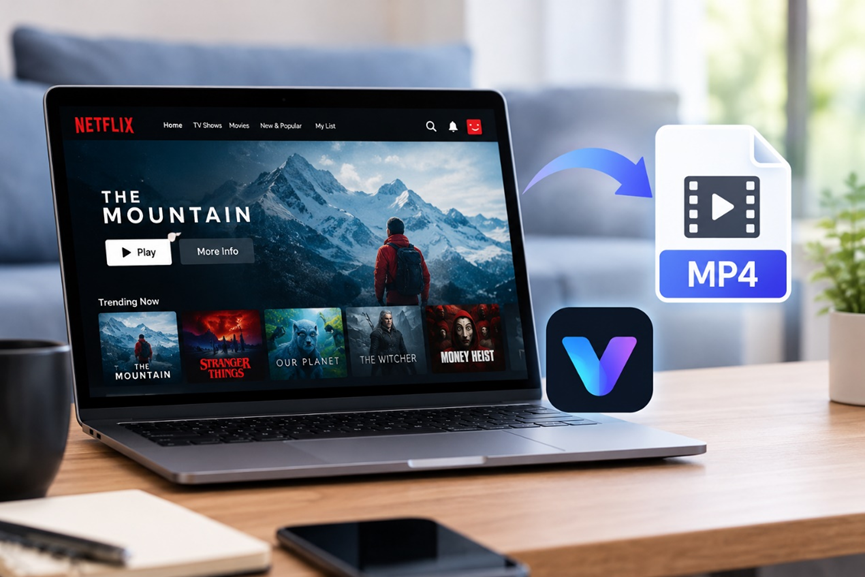
Netflix makes it easy to stream movies and TV shows, but watching them offline can be less straightforward. You may want to watch a favorite film while traveling, play it on a device without the Netflix app, or organize your video collection on an external drive. In these situations, saving a movie as an MP4 file can be appealing.
The challenge is that Netflix’s built-in download feature does not provide ordinary MP4 files. Its downloads are designed for playback within the Netflix app, with restrictions that can vary by title, device, and subscription plan. So, what options are available if you want more flexibility?
Why Download Netflix Movies to MP4?
MP4 is one of the most widely supported video formats. It works with many desktop media players, smartphones, tablets, and other compatible devices. Having a video in this format can make file management and playback more convenient.
Netflix’s official offline feature remains the simplest option for supported devices. However, its downloads are managed within the app rather than saved as standalone video files. They may also have expiration dates or other restrictions.
For users who specifically need standard video files, a dedicated streaming video downloader is another option to explore.
How to Download Netflix Movies to MP4 with VidiFab
VidiFab Streaming Video Downloader is a desktop application designed to download videos from several major streaming services, including Netflix, Amazon Prime Video, Disney+, and other supported platforms. It supports MP4 and MKV output, giving users more flexibility when managing downloaded videos.
Depending on the selected title and available source quality, the software supports video output up to 1080p. It also offers options for audio tracks, subtitles, and batch downloads, making it useful for users who want to prepare multiple movies or episodes for offline viewing.
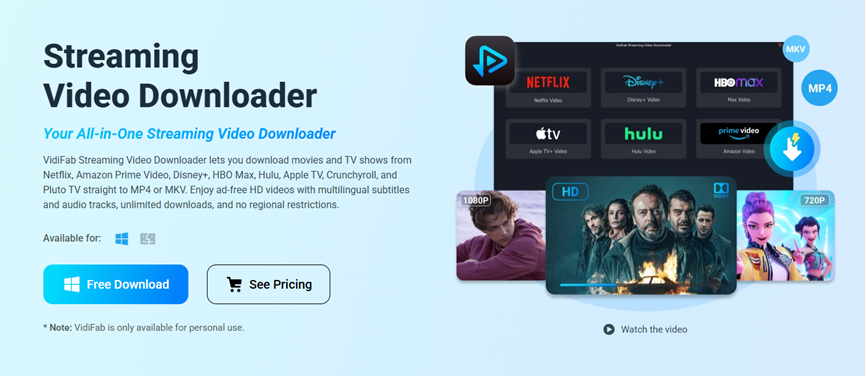
You can explore its features on the official VidiFab Streaming Video Downloader page. If you specifically want to save Netflix movies on a computer, this guide explains how to download Netflix movies on PC.
Step 1: Install the Software
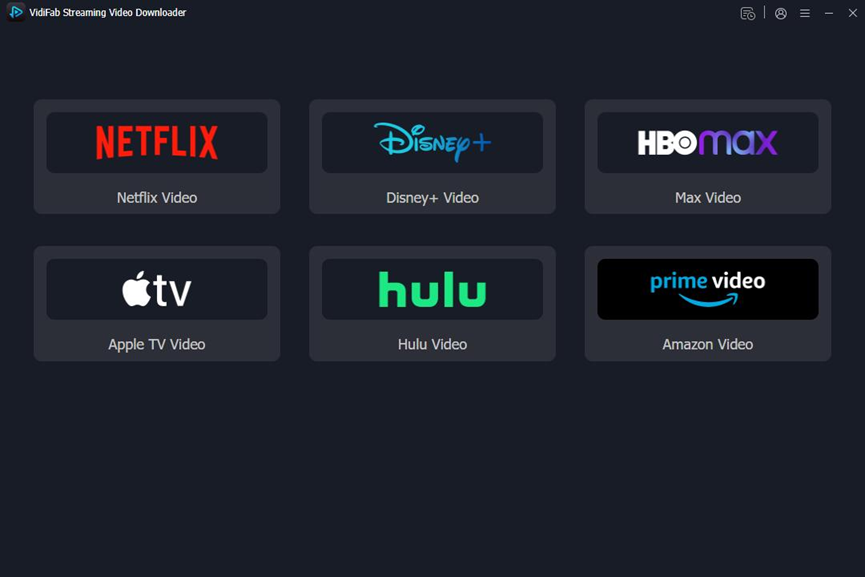
Download VidiFab Streaming Video Downloader from its official website and install it on your Windows PC or Mac. Open the application and select Netflix from the list of supported streaming platforms.
Step 2: Find the Movie You Want
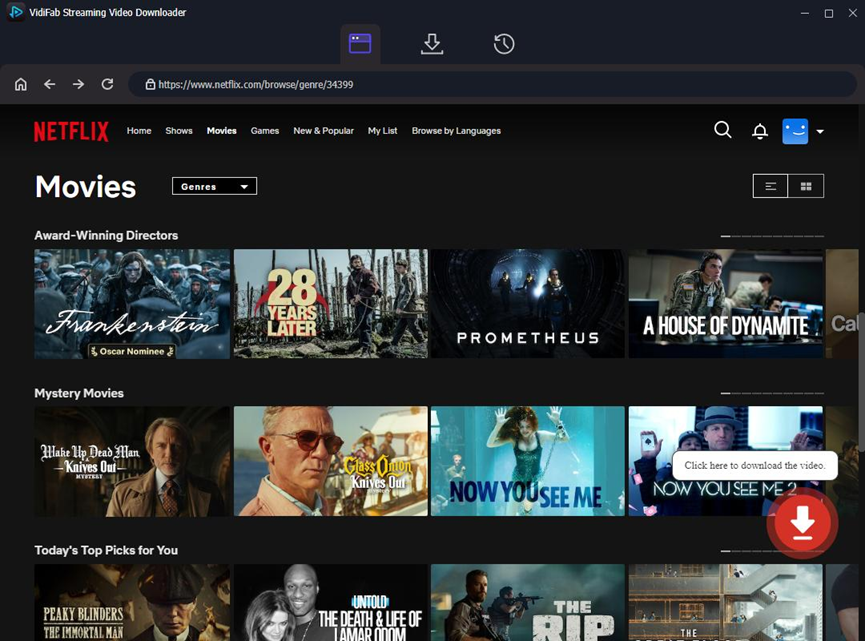
Use the built-in browser to access Netflix and locate the movie you want to download. Search by title or browse the available library. Availability depends on your account and region.
Step 3: Choose MP4 as the Output Format
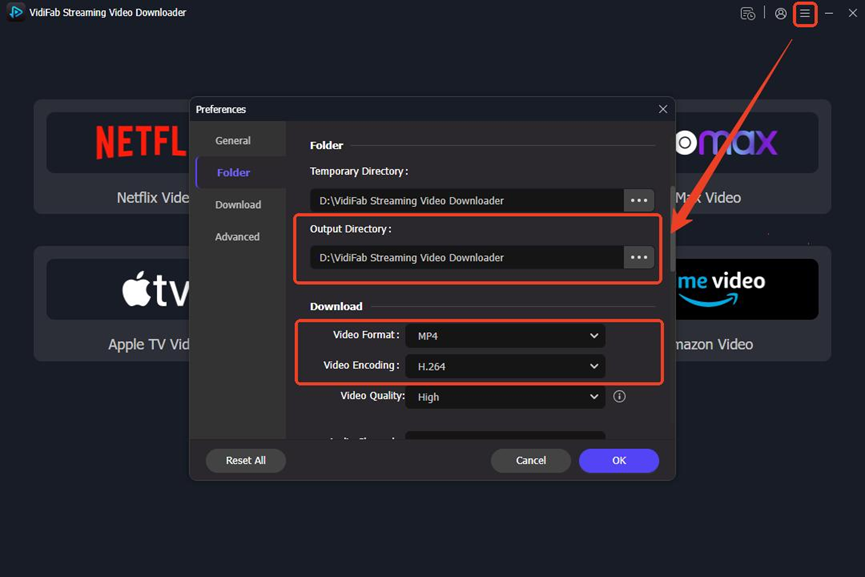
Open the software’s preferences and select MP4 as the output format. You can also adjust the available video quality and configure audio and subtitle options according to your needs.
Step 4: Start the Download
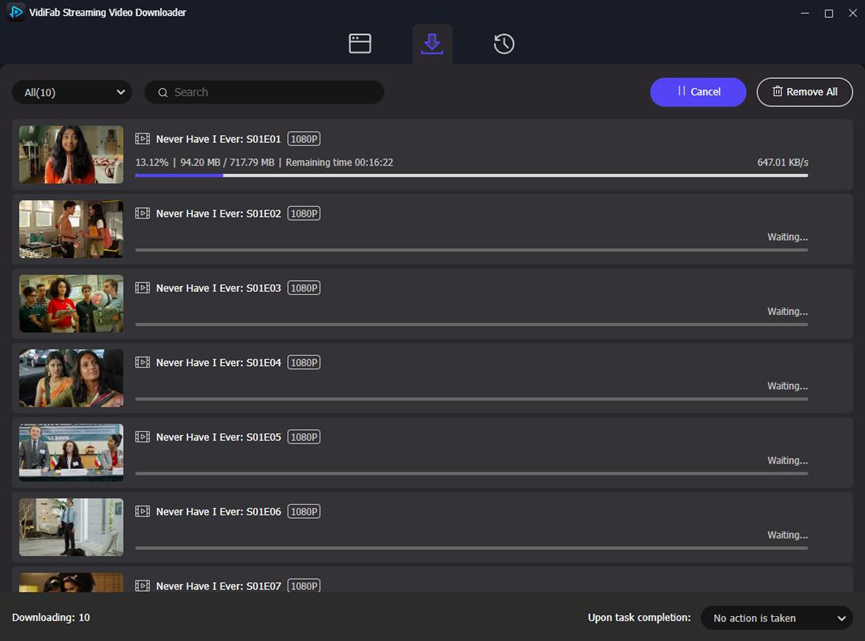
Open the movie’s details page and follow the application’s download prompts. When processing is complete, check the output folder for the saved video.
For more detailed instructions and format-specific tips, see this guide to downloading Netflix movies to MP4.
What to Consider Before Downloading
Not every method is equally convenient. Online converters may advertise quick results, but many cannot convert protected Netflix streams into ordinary MP4 files simply by pasting a URL. Screen recording is another possibility, although it takes as long as the video itself to capture and may introduce quality issues.
A desktop application can offer a more organized workflow, particularly when you want to manage several videos or customize output settings. Still, results can depend on software compatibility, service updates, regional availability, and the specific title.
Final Thoughts
Downloading Netflix movies to MP4 can be useful if you need more control over playback and file organization than the standard app provides. Netflix’s official download feature is a good starting point for supported devices, while a dedicated desktop tool such as VidiFab offers additional output-format and subtitle options.
If MP4 compatibility, batch processing, and customizable downloads are priorities, VidiFab is worth exploring. Review its supported platforms and trial limitations before choosing the workflow that best fits your offline-viewing needs.
You may also like to check out:
- Download: iOS 27.0.1 IPSW Links, OTA Update Released, Here’s What Is New
- Jailbreak iOS 27.0.1: Everything You Need To Know
- How To Fix Bad iOS 27 Battery Life Drain On Your iPhone
You can follow us on X, or Instagram, subscribe to our YouTube channel and even like our Facebook page to keep yourself updated on all the latest from Microsoft, Google, Apple, and the Web.